Response Types in Visualization

Altogether, there are eight response types for the representation of search results in the visualization. Four of them are the regular response types, and the other four response types are the same responses grouped into time buckets for a given time-range.

Single Aggregation without Grouping

The Single Aggregation without Grouping response type is used for aggregation of an individual parameter concerning a given aggregation parameter.

The general syntax for the Single Aggregation without Grouping is:

| chart aggregation_parameter

This search query displays the value of the aggregation parameter over a specified range of time. The result of this response type can be represented in the form of :

Visualization Type

Sample Search Query

Display Chart

| chart count()

Gauge Chart

| chart count()

Single Aggregation with Grouping

The Single Aggregation with Grouping response type is used for aggregation of various grouping parameters concerning a given aggregation parameter. The general syntax for Single Aggregation with Grouping is:

| chart aggregation_parameter by grouping_parameter1, grouping_parameter2, ........, grouping_parametern

Example queries of Single Aggregation with Grouping are:

| chart count() by device_name
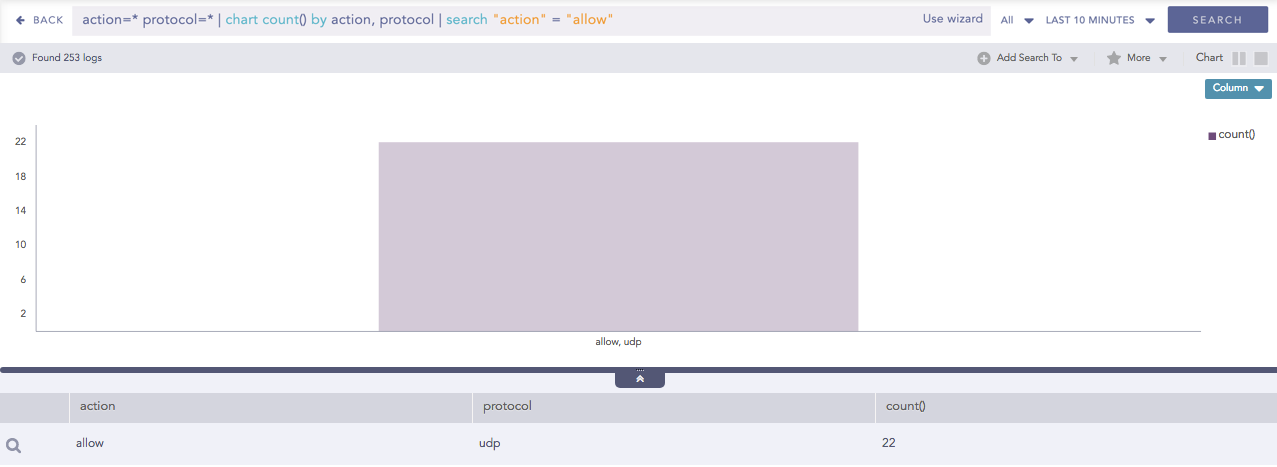
| chart sum(datasize) by action, protocol
| chart avg(datasize) by type, protocol, device_ip

The response type displays the value of the aggregation parameter, grouped by all the grouping parameter(s) in the specified time range. The result of this query can be represented in the form of :

Visualization Type

Sample Search Query

Display Chart

| chart count() by attack_category

Column Chart

severity=* | chart count() by severity order by count() desc limit 5

Line Chart

severity=* | chart count() by severity

Donut Chart

source_address=* | chart count() by source_address

Area Chart

action=* source_address=* | chart count() by action, source_address

Bar Chart

severity=* | chart count() by severity order by count() desc limit 5

Heatmap Chart

source_address=* action=* | chart count() by source_address, action order by count() desc limit 10

Radar chart

service=* action=* | chart count() by action, service

TreeMap Chart

source_address=* action=* | chart count() by source_address, action order by count() desc limit 10

Parallel Coordinate Chart

| process geoip(source_address) as source_country | chart count() by source_country, sub_category, destination_location

Sankey chart

| process geoip(source_address) as country | chart count() by country, severity, category, sub_category

World Map Chart

| process geoip(destination_address) as country_name | chart count(), avg(datasize) by country_name, action

ATT&CK chart

| chart count() by attack_id

General Operations for Single Aggregation with Grouping

This section contains the general operations applicable to all the charts belonging to the Single Aggregation with Grouping response type.

Note

Some charts might consist of operations that are relevant to the specific chart only. In that case, refer to the article of the particular chart.

Drill-down

In the Single Aggregation with Grouping response type, you can perform the drill-down specific value of the grouping or aggregation parameter.

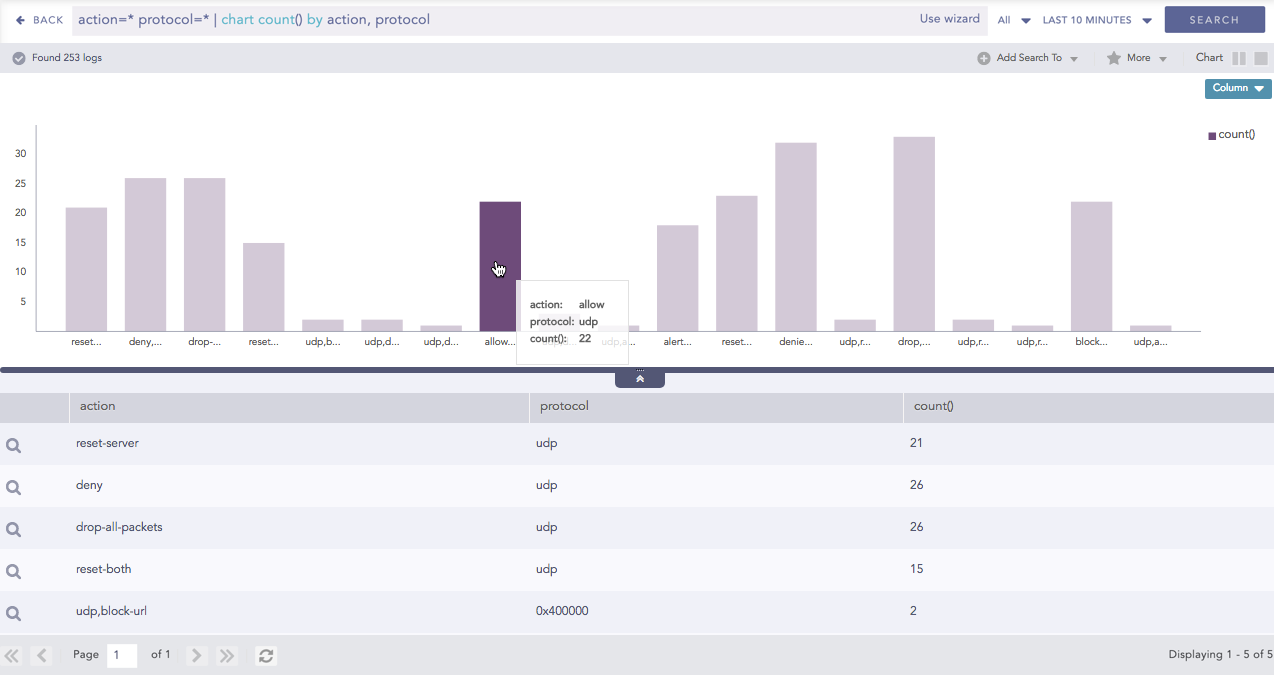
When you hover over a component of a graph (including but not limited node, line, bar, point) a tooltip appears. The tooltip displays all the relevant information about the particular component.

../_images/LP_Search_SAWG_Drilldown_Tooltip.png

Tooltip

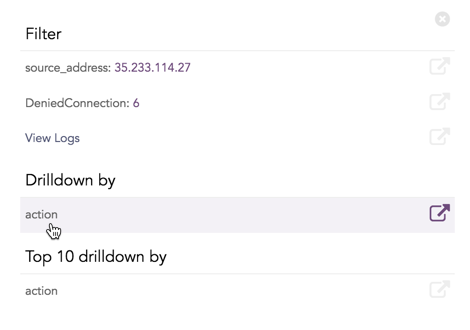
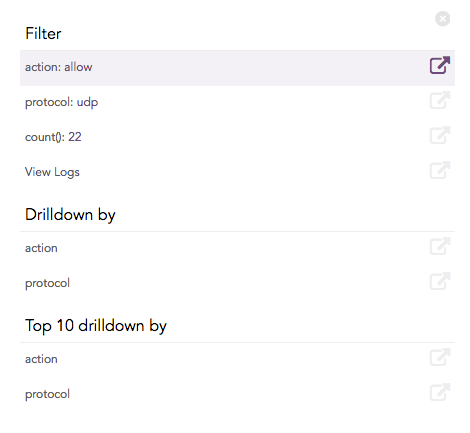
Click the component to open a new drill-down window. The window summarizes the information of the selected node along with the option to drill down as per your preference.

../_images/LP_Search_SAWG_Drilldown_Filter.png

Drill-down window - Filter

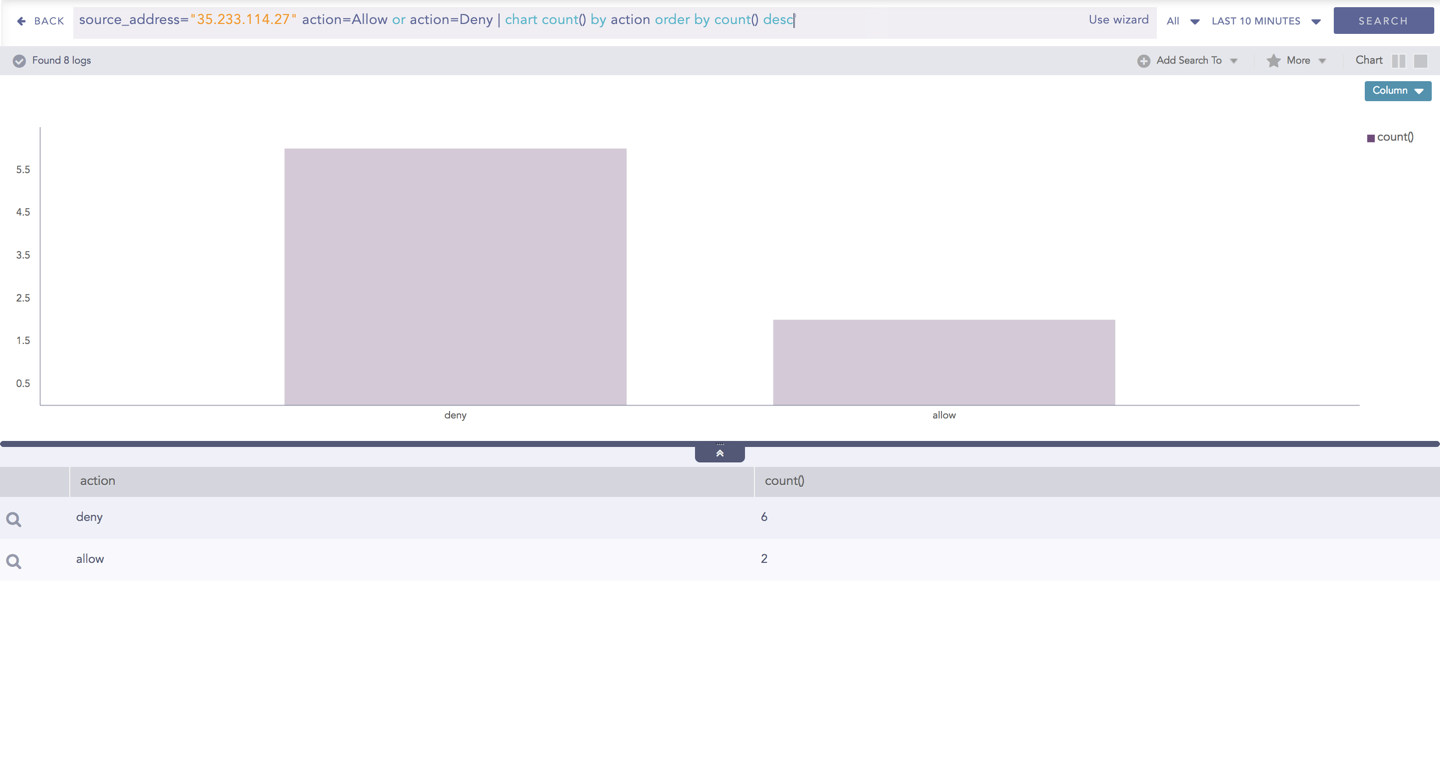
Click the corresponding Open in a new window icon to further drill down on any field. Additionally, you can view the search results for the selected set of data by clicking View Logs in the same window.

../_images/LP_Search_SAWG_Drilldown_Result.png

Drill-down results

Multiple Aggregation without Grouping

The Multiple Aggregation without Grouping response type is used for aggregation of multiple aggregation parameters for all the available logs or the given repo and time range. An example of a search query for such response is:

| chart count(), avg(datasize)

This query displays the total count and the average of datasize of the logs collected in the specified range of time. The result of this query can be represented in the form of :

Visualization Type

Sample Search Query

Clustered Column Chart

| chart max(sent_datasize), max(received_datasize)

Clustered Bar Chart

| chart avg(sent_datasize), avg(received_datasize)

Display Chart

| chart count(), max(datasize), avg(datasize)

General Operations for Multiple Aggregation without Grouping

Interactive Legend

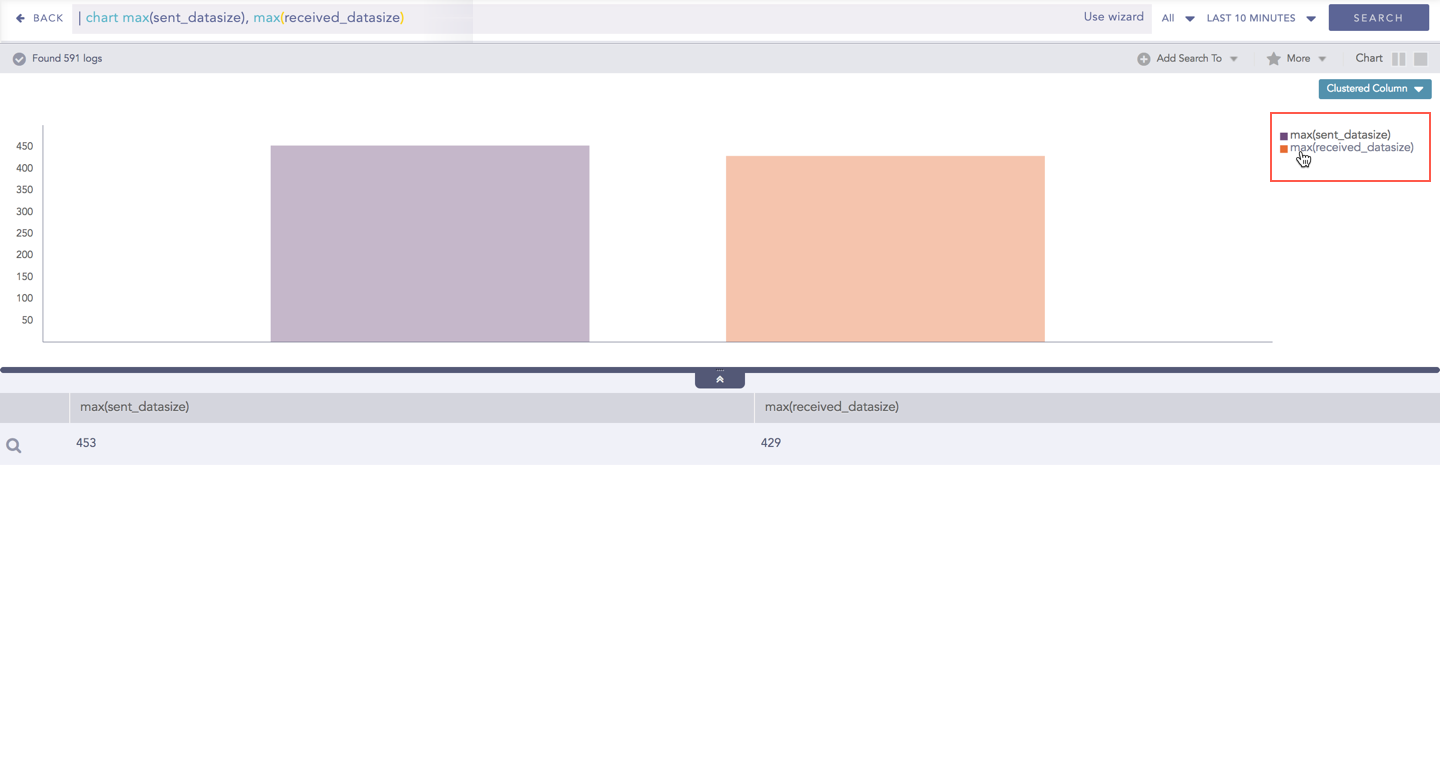
In Multiple Aggregation without Grouping, when a chart is rendered, all selected aggregation parameters are displayed with a unique color for each aggregation parameter. However, you can choose to view the graphs concerning a specific aggregation parameter(s).

To hide an aggregation parameter, click the name of the parameter on the legend at the extreme right side of the container.

../_images/LP_Search_MAWoG_ActvLgnd.png

Interactive legend

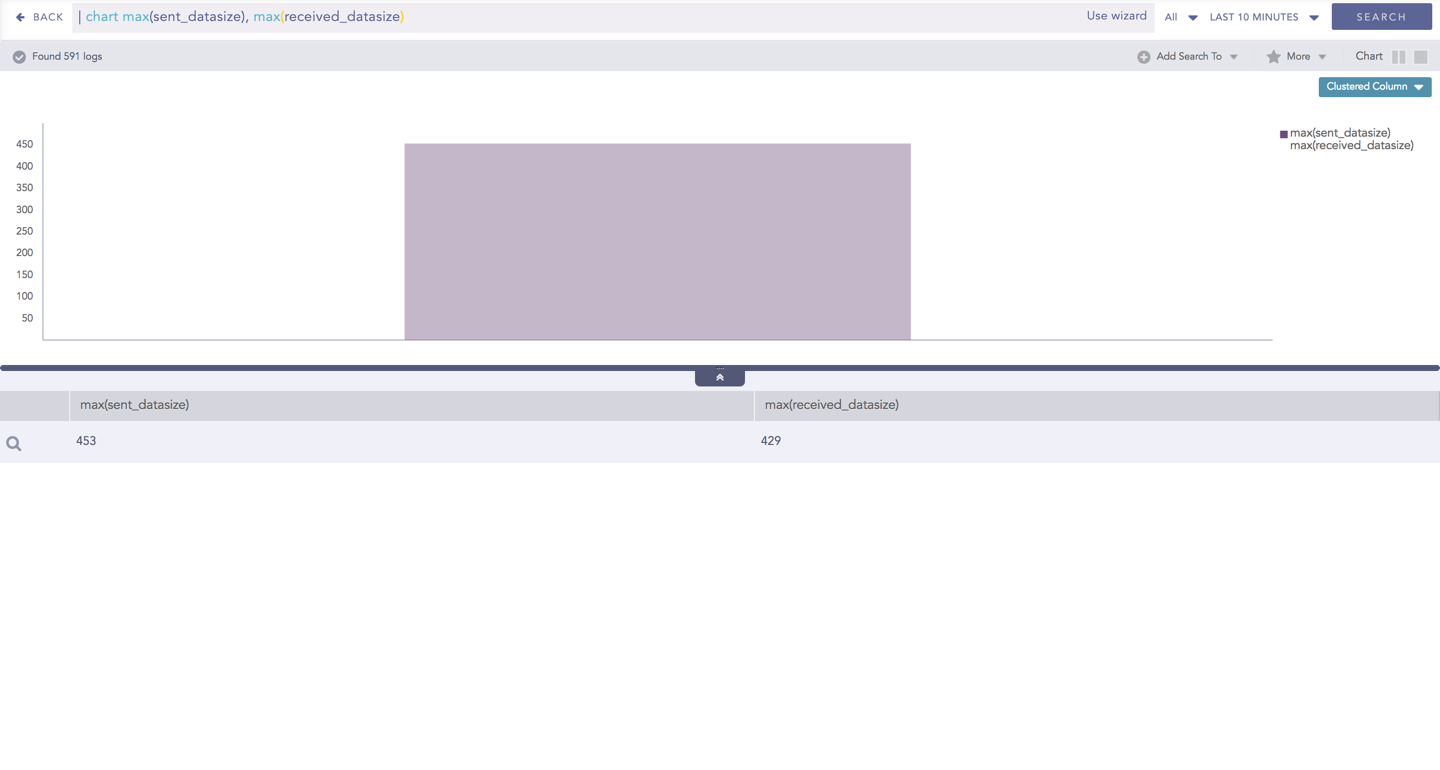
When you click a name of a parameter on the legend, the section referring to the respective parameter disappears, and a new chart is rendered consisting of all other aggregation parameters. You can unhide the parameter by clicking the legend again.

../_images/LP_Search_MAWoG_ActvLgnd_Rslt.png

Note

The scale on the y-axis is auto-adjusted as per the value of the remaining aggregation parameter(s).

Drill down

Through the drill-down feature, you can choose to retrieve detailed results about a specific section of a chart. In Multiple Aggregation without Grouping response type, you can drill-down search operation over a specific value of aggregation parameter.

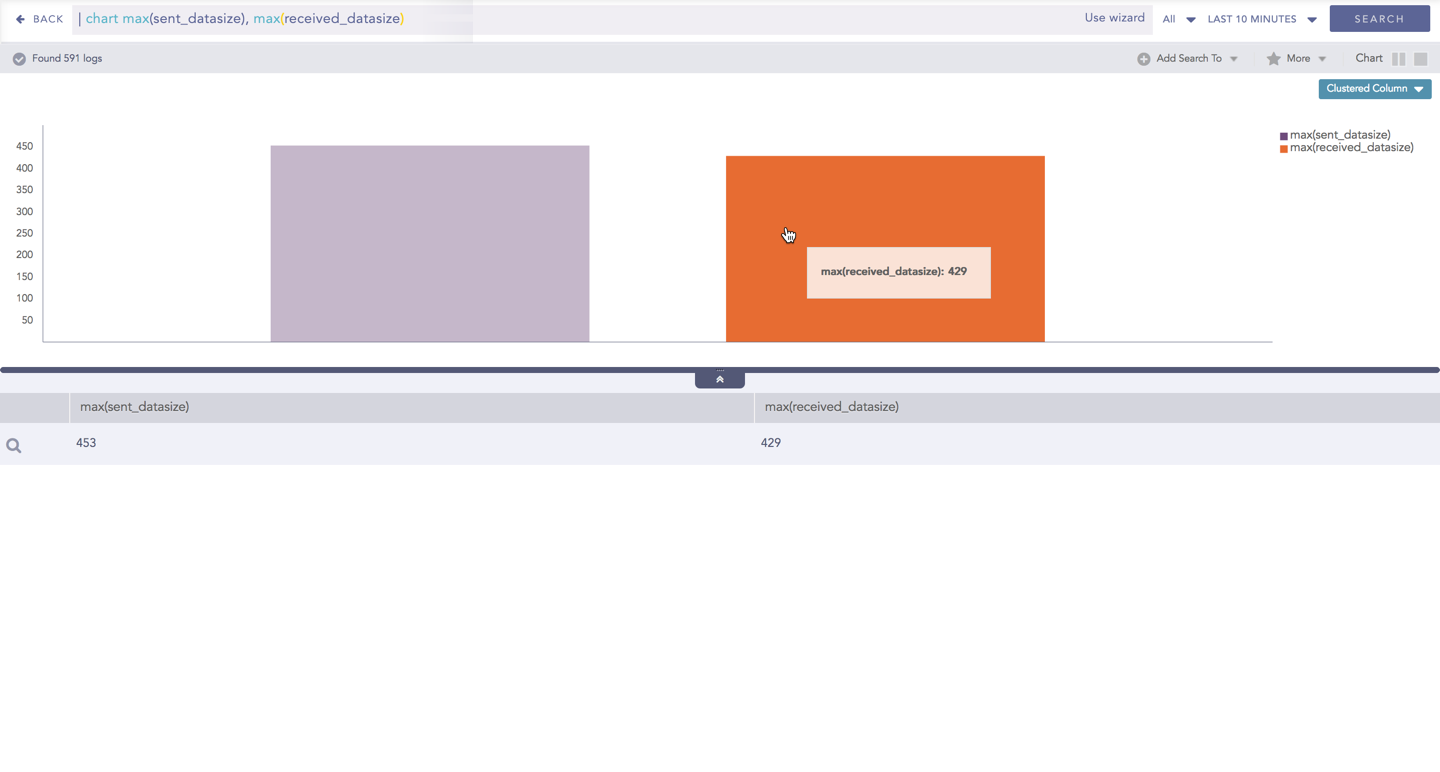
Hover over a component of a graph (example: node, line, bar, point) to view the tooltip. The tooltip displays all the relevant information about the particular component.

../_images/LP_Search_MAWoG_Drilldown_Tooltip.png

Tooltip

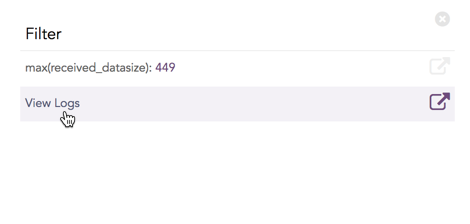
Click the segment to open a drill-down window. The window summarizes the related information of the selected section along with the option to drill down as per your preference.

../_images/LP_Search_MAWoG_Drilldown_Filter.png

Drill-down window - Filter

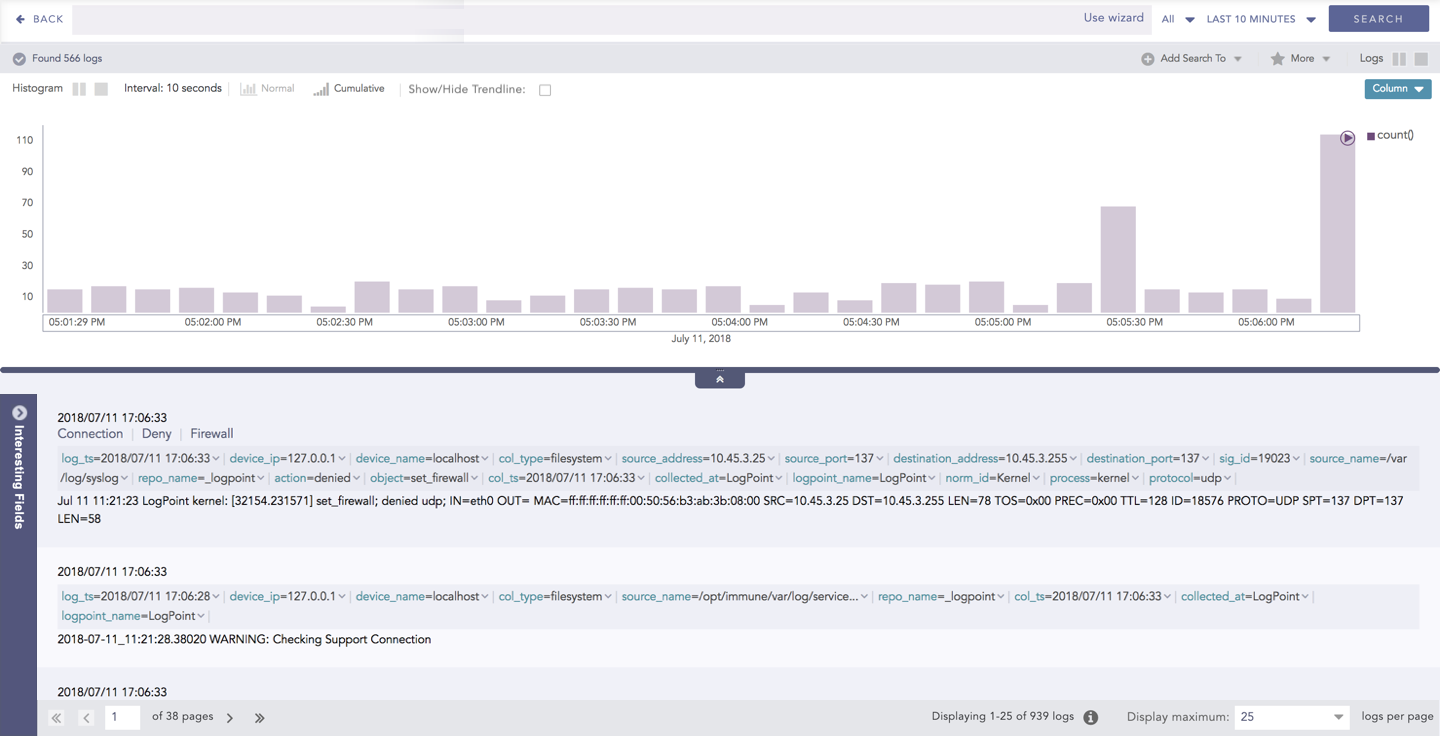
Click the corresponding Open in a new window icon to further drill-down the search result from any field. Additionally, click the View Logs to view the search result for the selected set of data.

../_images/LP_Search_MAWoG_Drilldown_Result.png

Drill-down results

Note

The drill-down feature is not applicable for the Display format of Multiple Aggregations without Grouping response type.

Multiple Aggregation with Grouping

The Multiple Aggregation with Grouping response type is used for aggregation of grouping parameters concerning given multiple aggregation parameters.

The general syntax for Multiple Aggregation with Grouping is:

| chart aggregation_parameter1, aggregation_parameter2 by grouping_parameter1, grouping_parameter2, ...,
grouping_parametern

Example queries of Multiple Aggregation with Grouping type are:

| chart count(), avg(datasize) by action

user=* | chart count(label=Fail) as Failed, count(label=Successful) as Successful by user order by Failed desc limit 10

This query displays the count and average datasize of the collected logs in the specified time range grouped by the actions applied. The result of this query can be represented in the form of :

Visualization Type

Sample Search Query

Clustered Column Chart

action=Allow or action=Deny | chart count(action=allow) as AllowedConnection, count(action=deny) as DeniedConnection by source_address order by count(action=allow), count(action=deny) desc limit 10

Clustered Bar Chart

action=Allow or action=Deny | chart count(action=allow) as AllowedConnection, count(action=deny) as DeniedConnection by source_address order by count(action=allow), count(action=deny) desc limit 10

Clustered Line Chart

sent_datasize=* source_address=* | chart max(sent_datasize), max(received_datasize) by source_address order by max(sent_datasize), max(received_datasize) desc limit 10

Stacked Area Chart

sent_datasize=* source_address=* | chart max(sent_datasize), max(received_datasize) by source_address order by max(sent_datasize), max(received_datasize) desc limit 10

Radar chart

"norm_id"="WinDNSDHCP"| chart count(lease_address=end), count(lease_address=start) by user

World Map Chart

| process geoip(destination_address) as country_name | chart count(), avg(datasize) by country_name, action

Bubble Chart

| chart count(), max(sig_id) by action

General Operations for Multiple Aggregation with Grouping

This section contains the general operations that can be applied to all the charts belonging to the Multiple Aggregation with Grouping response type.

Note

Some charts might consist of operations that are relevant to the specific chart only. For such operations, refer to the section of the particular chart.

Interactive Legend

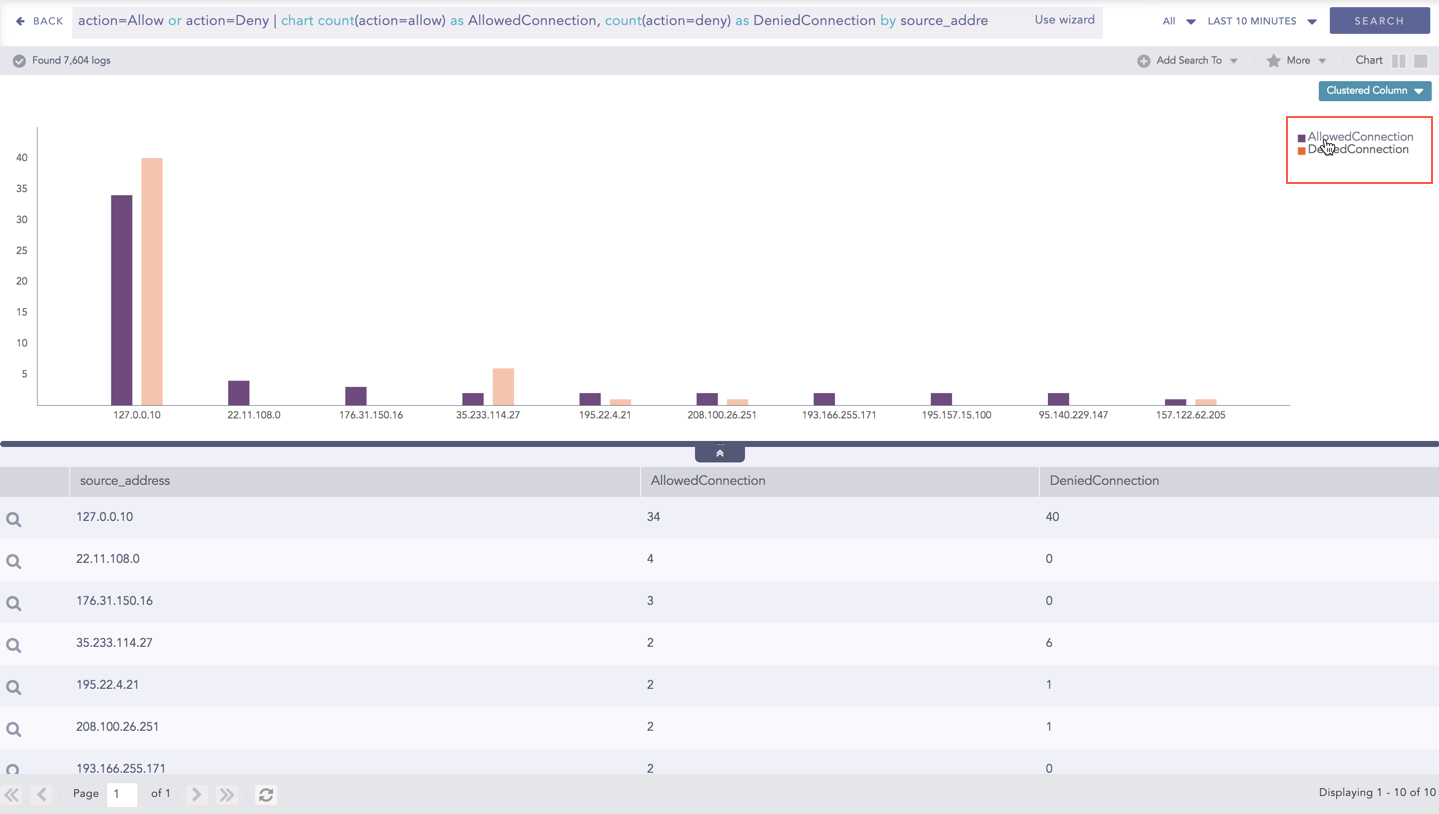
In the Multiple Aggregation with Grouping response type, when a chart is rendered, values of all the selected aggregation parameters are displayed with a unique color for each aggregation parameter. However, you can choose to view the graphs concerning specific aggregation parameter(s).

To hide an aggregation parameter, click the name of the parameter on the legend at the extreme right side of the container.

../_images/LP_Search_MAWG_ActvLgnd.png

Interactive legend

Click the name of a parameter on the legend, to hide its respective section. A new chart is rendered consisting of all other aggregation parameters. You can unhide the parameter by clicking the legend again.

../_images/LP_Search_MAWoG_ActvLgnd_Rslt.png

Note

The scale on the y-axis is auto-adjusted as per value of the remaining aggregation parameter(s).

Drill-down

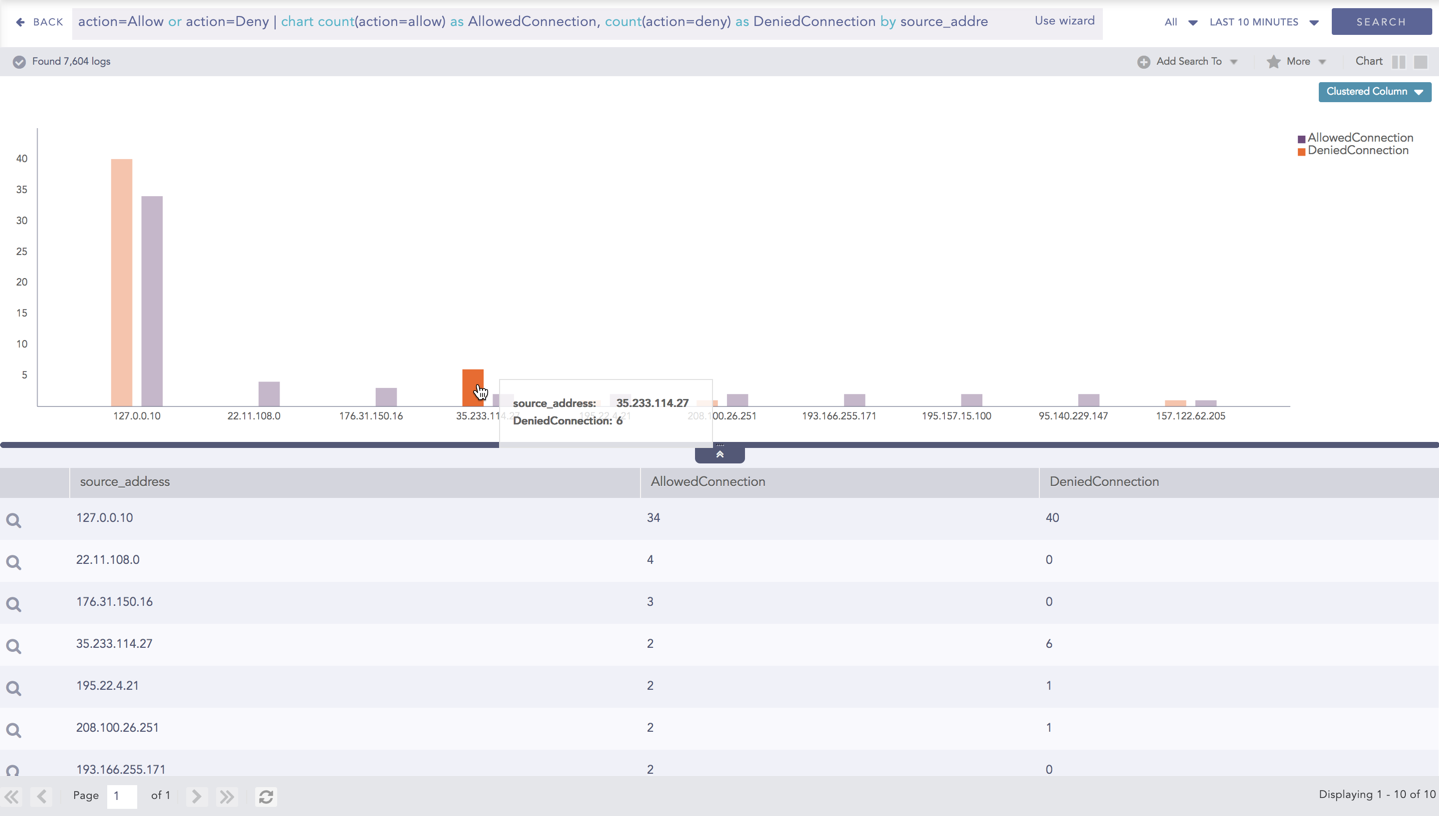
In the Multiple Aggregation with Grouping response type, you can drill-down search operation regarding a specific value of the grouping parameter concerning a single or multiple aggregation parameters.

Hover over a component of a graph (example: node, line, bar, point e.t.c) to view a tooltip. The tooltip displays all the relevant information about the particular component.

../_images/LP_Search_MAWG_Drilldown_Tooltip.png

Tooltip

Click the segment to open a drill-down window. The window summarizes the related information of the selected section along with the option to drill down as per your preference.

../_images/LP_Search_MAWG_Drilldown_Filter.png

Drill-down window - Filter

Click the corresponding Open in a new window icon to further drill-down the search result from any field. Additionally, click the View Logs to view the search result for the selected set of data.

../_images/LP_Search_MAWG_Drilldown_Result.png

Drill-down results

Timechart Single Aggregation without Grouping

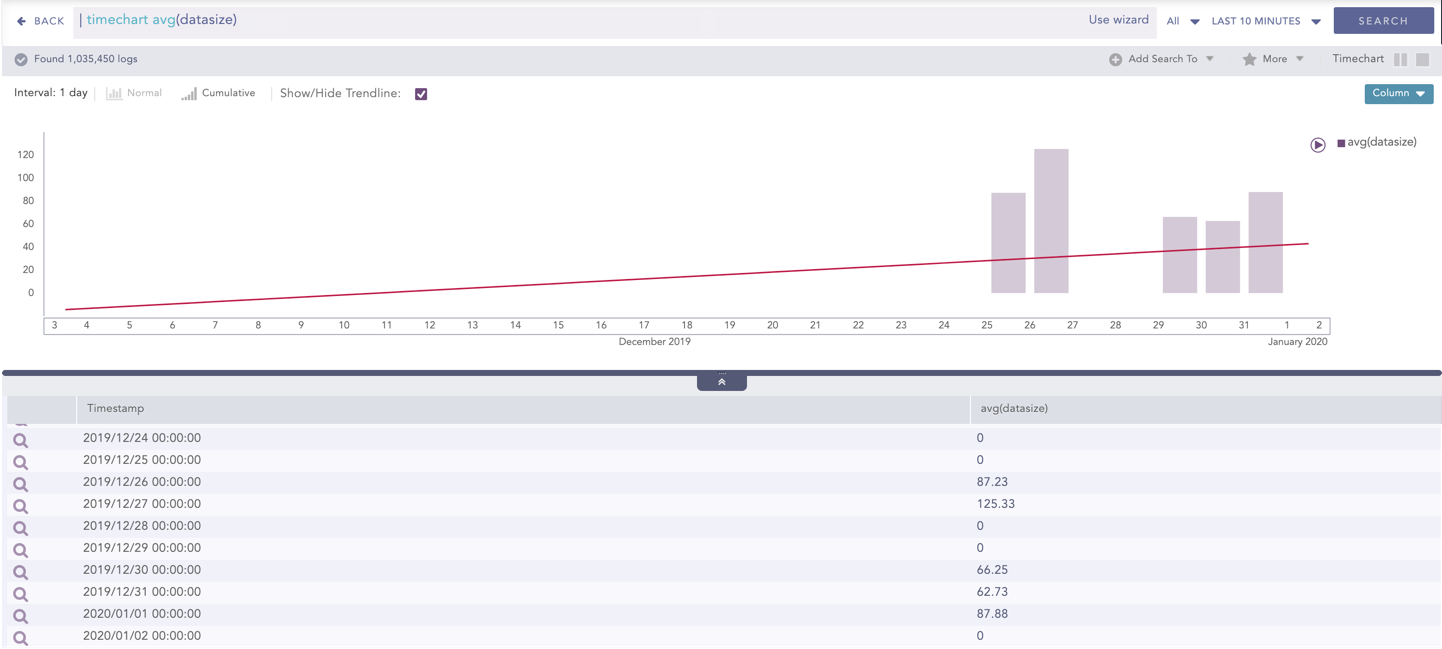
The Timechart Single Aggregation without Grouping response type is used for aggregation of processed logs to a given aggregation parameter grouped into time buckets (as a time series data) over a specified time range.

The general syntax for the Timechart Single Aggregation without Grouping is:

| timechart aggregation_parameter

Example queries of the Timechart Single Aggregation without Grouping type are:

| timechart count()
| timechart sum(datasize)
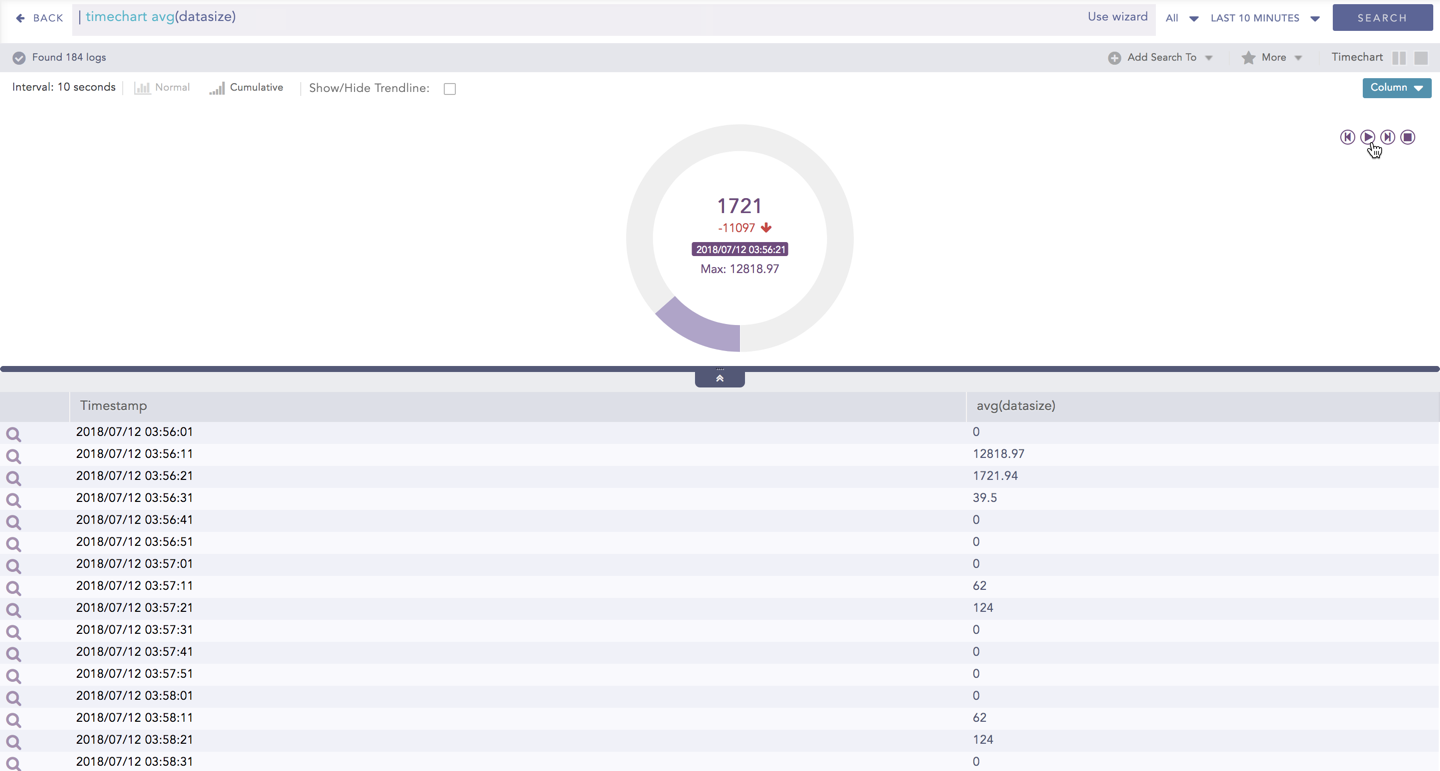
| timechart avg(datasize)

This response type displays the value of the aggregation parameter in the specified range of time. The charts that are used to visualize the queries belonging to this response type are : Column, Line, Area, Day/Hour Heatmap, and Radar

Visualization Type

Sample Search Query

Column Chart

| timechart avg(datasize)

Line Chart

| timechart avg(datasize)

Area Chart

| timechart sum(datasize)

Radar chart

"norm_id"="WinDNSDHCP"| timechart count(lease_address=drop)

Day/Hour Heatmap Chart

| timechart sum(datasize) as TotalDatasize every 1 hour

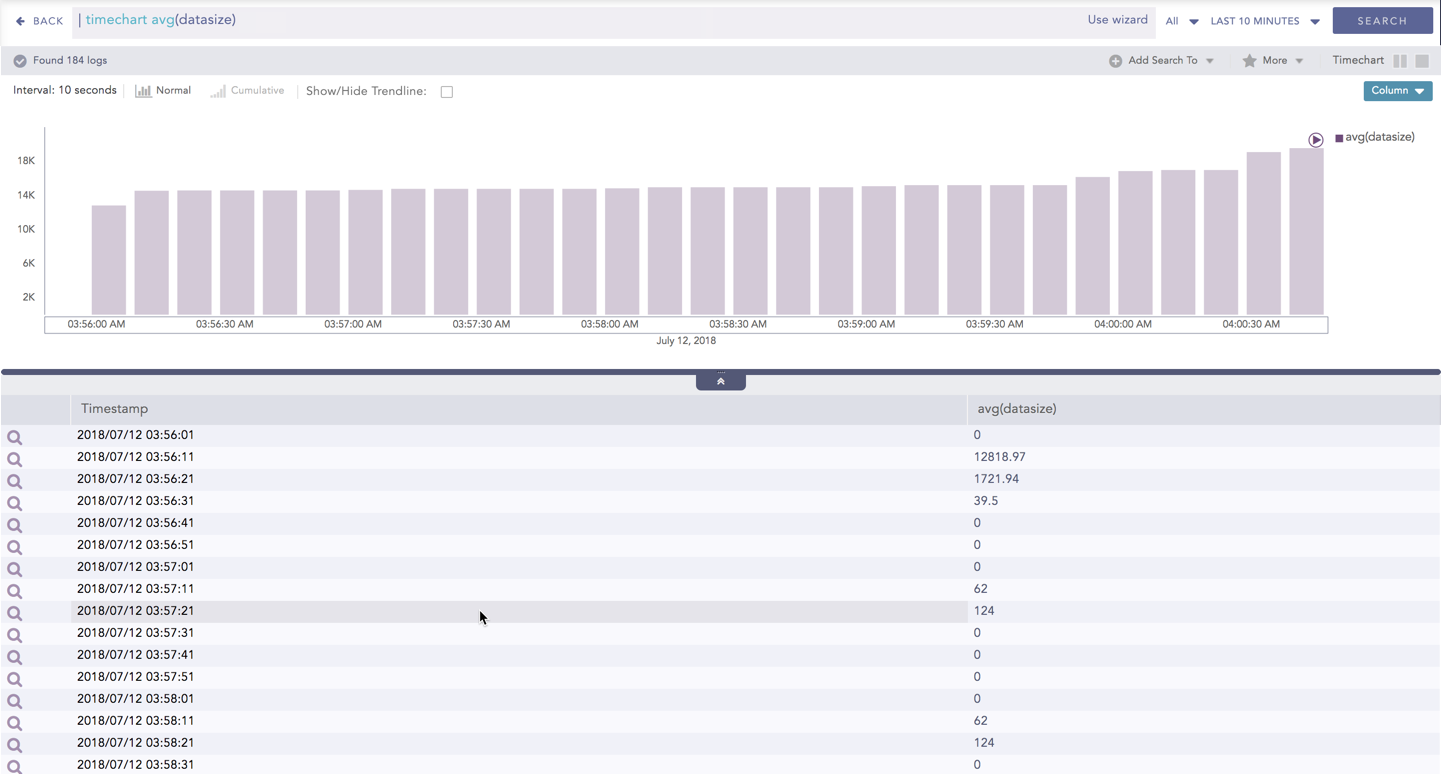
Additionally, the Cumulative chart option is also available along with the Normal chart for the Column, Line, and Area charts. The Cumulative option visualizes the results by accumulating data from the starting point to the current time-bucket for all time-buckets whereas the normal option visualizes the results as obtained from the query.

General Operations for Timechart Single Aggregation without Grouping

Drill-down

You can choose to view a detailed search for the response type regarding a specific value in two ways, i.e., from the line, or using a drag box.

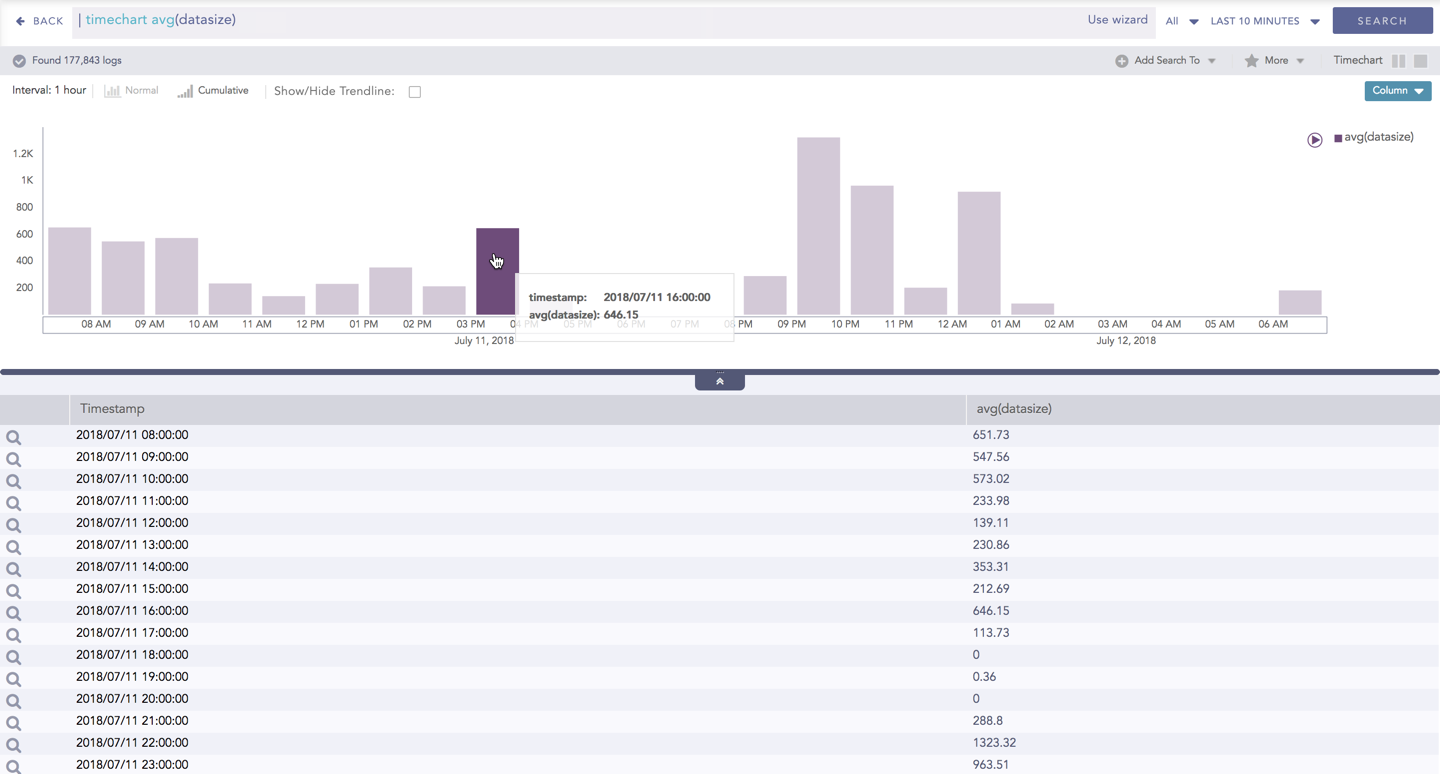
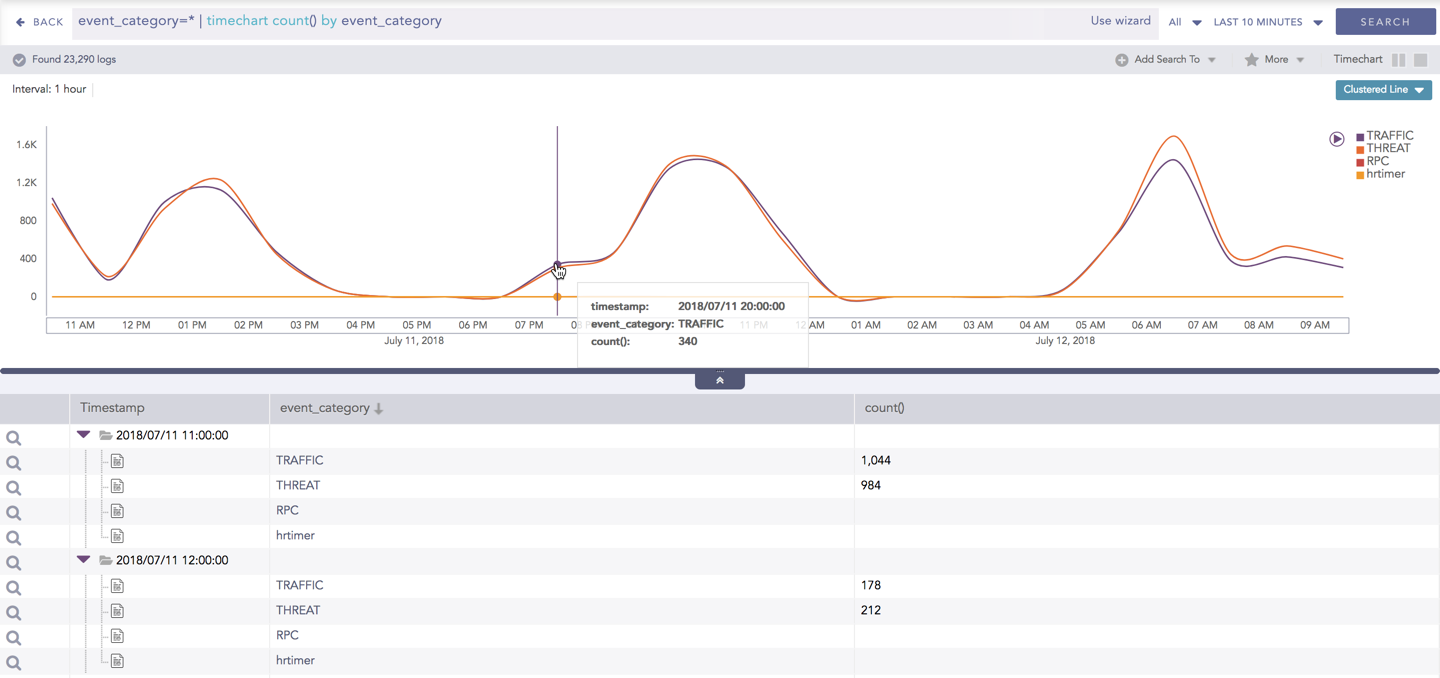
Hover over a specific component/area of a chart to view a tool-tip. The tooltip displays all the information about the particular node.

../_images/LP_Search_TSAWoG_Drilldown_Tooltip.png

Tooltip

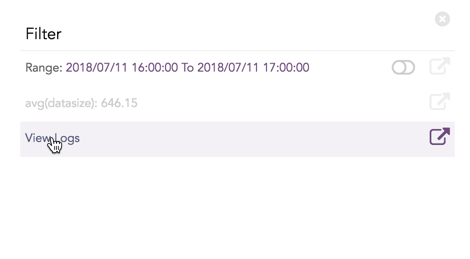
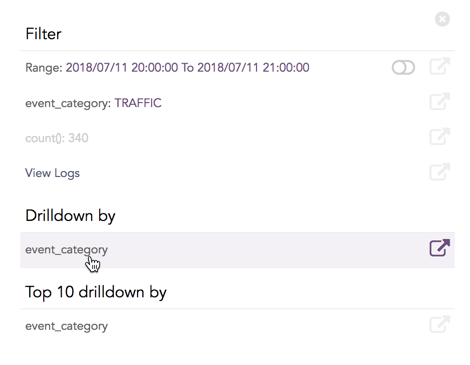
Click the component to open a drill-down window. The window summarizes the related information of the selected section along with the option to drill down as per your preference.

../_images/LP_Search_TSAWoG_Drilldown_Filter.png

Drill-down

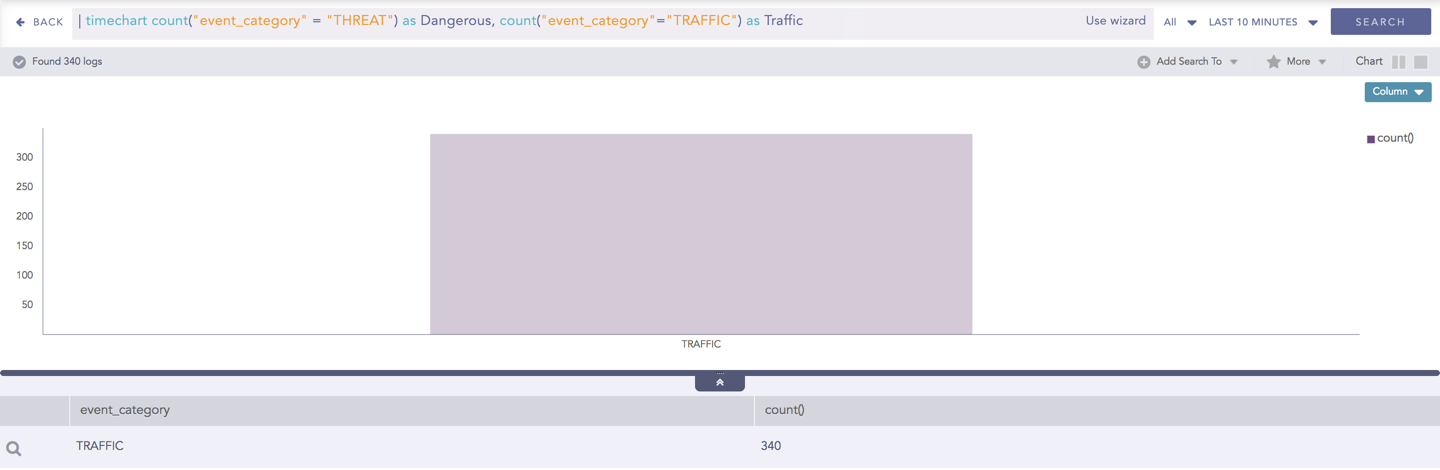
Click the corresponding Open in a new window icon to further drill-down the search result from any field. Additionally, click the View Logs to view the search result for the selected set of data.

../_images/LP_Search_TSAWoG_Drilldown_Result.png

Drill-down results

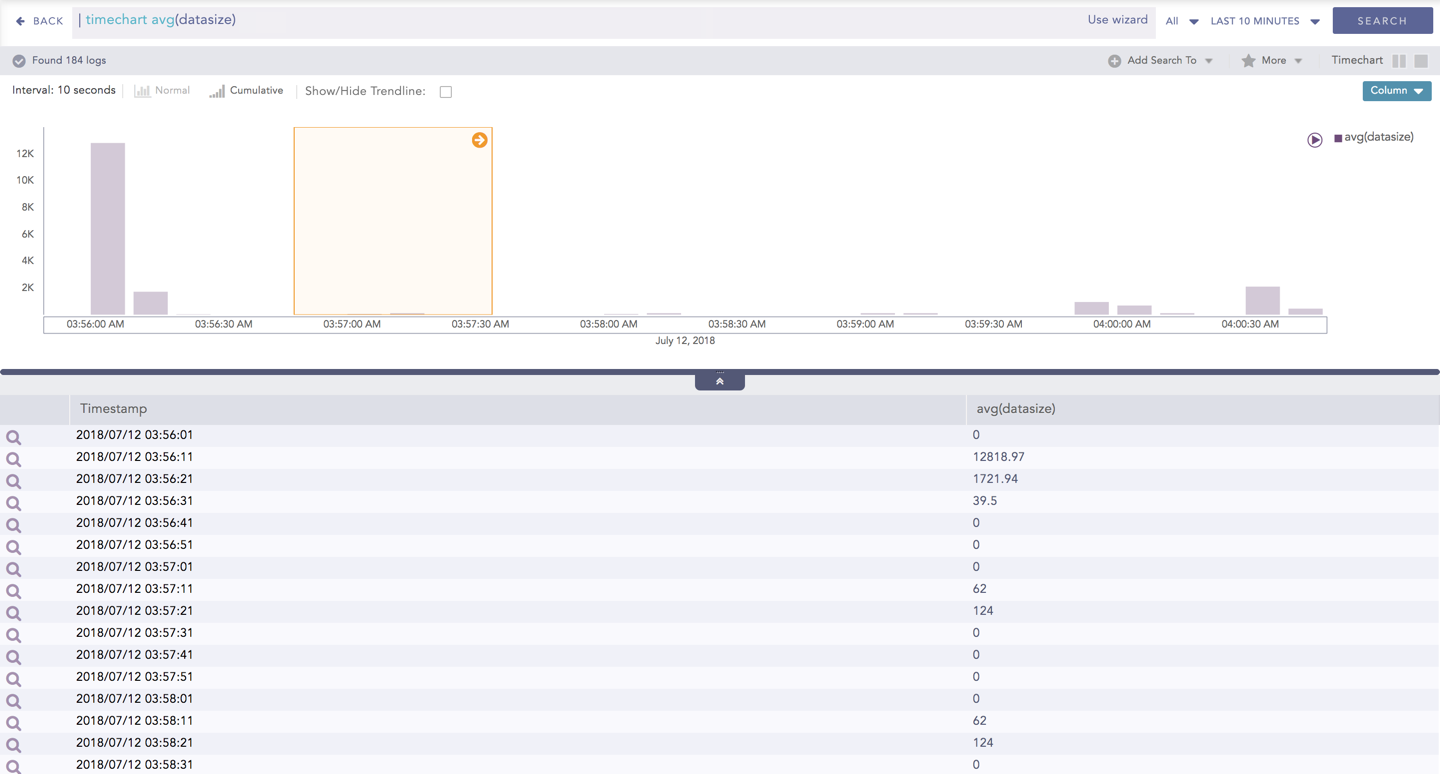
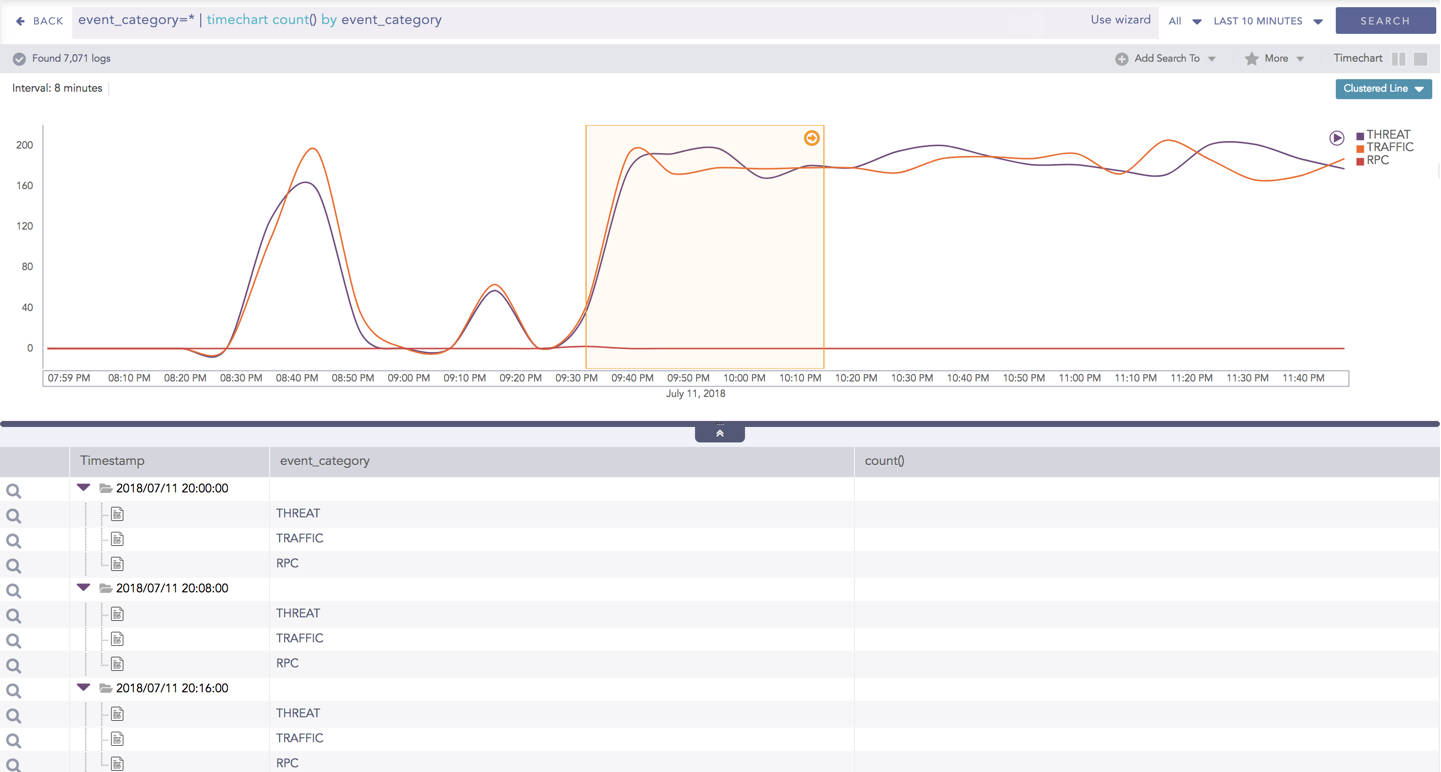
In addition to that, you can also drill down any chart of the response type using the drag box. Click and drag the mouse inside the graph, a yellow colored transparent drag box appears. You can drill-down the selected section of the chart by clicking the drill-down icon on the top-right corner of the box. You can resize or move the drag box as per your requirement.

../_images/LP_Search_TSAWoG_Drilldown_DragBox.png

Cumulative chart

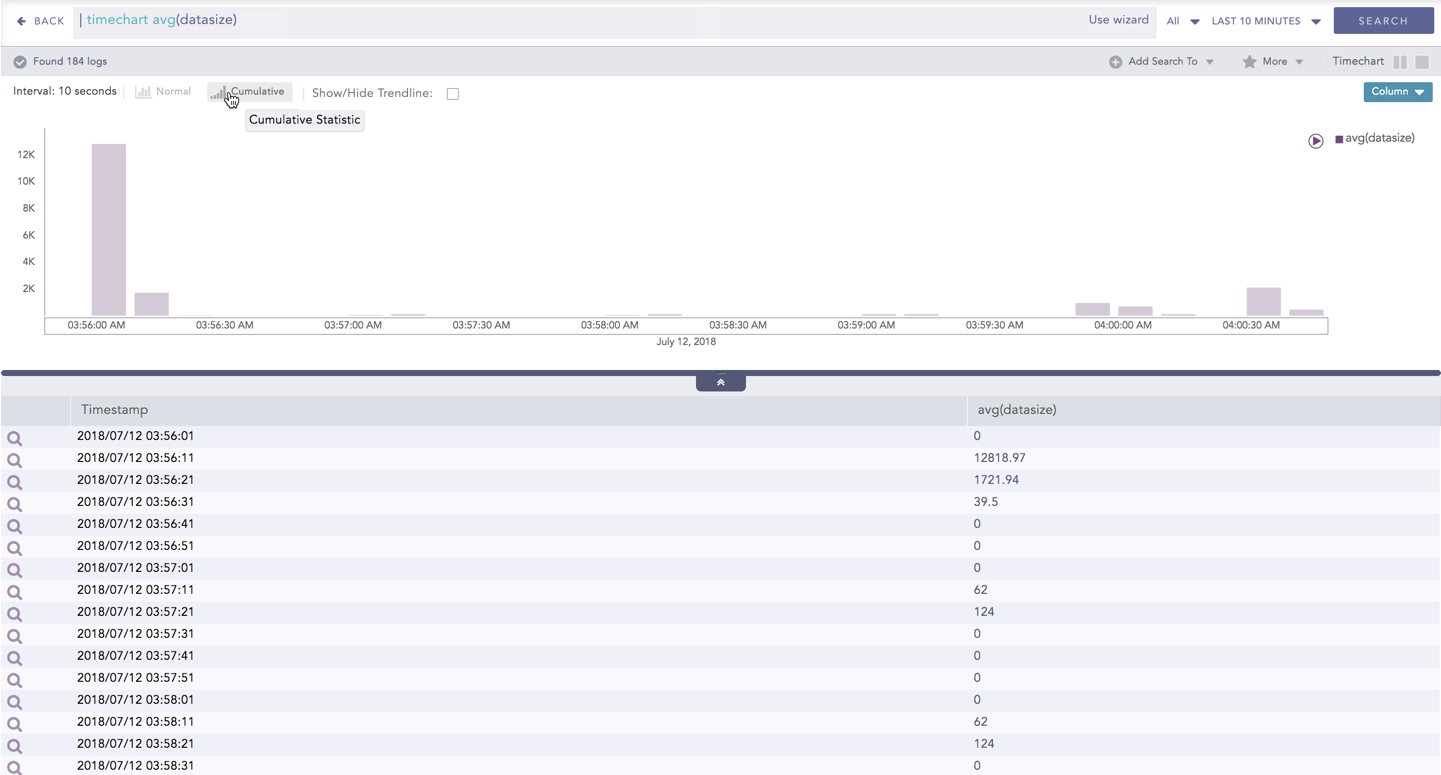
The Cumulative chart displays the accumulated data values throughout the given time range. To view the cumulative chart, click Cumulative on the left side of the container of a chart.

../_images/LP_Search_TSAWoG_Cumlativ.png

Cumulative chart option for Timechart Single Aggregation without Grouping

../_images/LP_Search_TSAWoG_Cumlativ_Rslt.png

Cumulative chart result for Timechart Single Aggregation without Grouping

Click Normal to view the regular chart.

Trendline

You can select the Show/Hide Trendline checkbox to identify whether the time-series data is likely to increase, decrease, or remain constant over a time period. The data on an increasing trend forms an upsloping line, whereas, on a decreasing trend, it forms a downsloping line. The Show/Hide Trendline checkbox is available for Column, Line, and Area charts of this response type only.

Note

The Show/Hide Trendline checkbox is also available for Column, Line, and Area charts resulted from Simple search queries and a blank search query.

../_images/LP_Search_TSAWoG_Trendline.png

Trendline

Interactive Animation

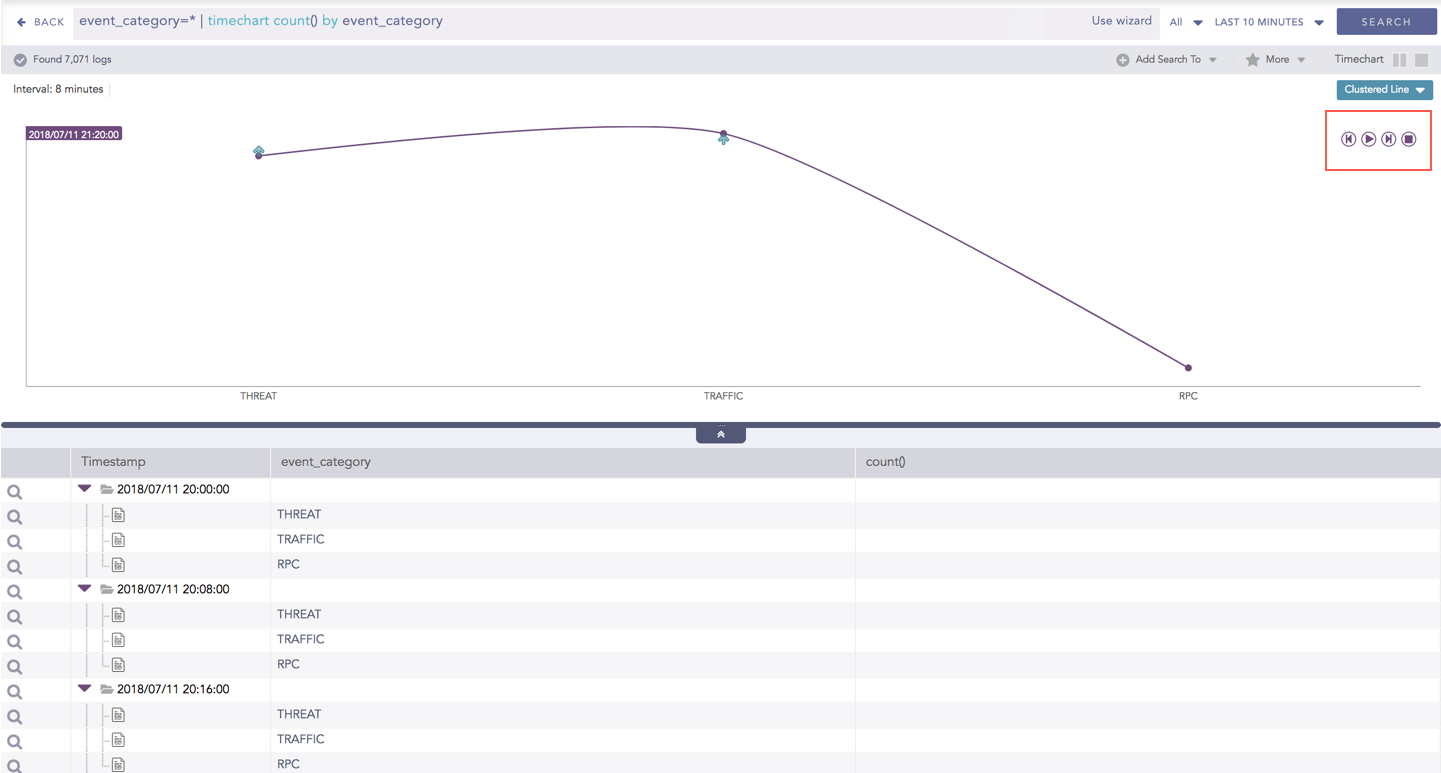
The charts belonging to the Timechart response type include an interactive play button. The button allows you to slide through values of the charts concerning time buckets known as Interval.

Click Play on the right side of the container to start the animation. The graph is refreshed every four seconds, i.e., that graph shifts from one time-bucket to another time bucket every four seconds. Value of the time bucket is dependent upon the time-range specified in the Interval.

../_images/LP_Search_TSAWoG_PlayBtn.png

You can also click Pause, Stop, Previous, Next, Replay as required.

Note

The operations Cumulative chart and Interactive Animation are not available for the Radar chart.

Timechart Single Aggregation with Grouping

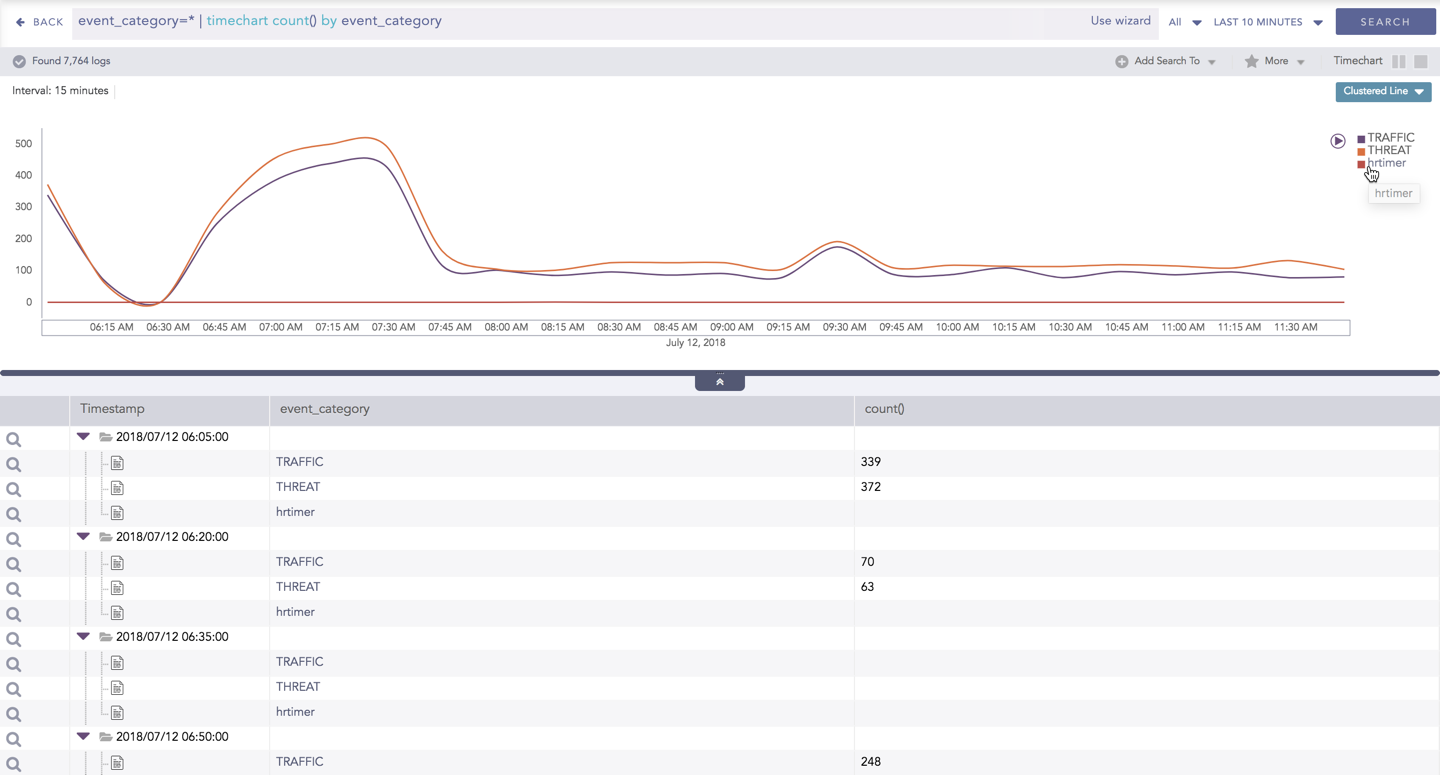
The Timechart Single Aggregation with Grouping response type is used for aggregation of processed logs by an individual grouping parameter concerning given a single aggregation parameter grouped into time buckets (as a time series data) over a specified time range.

The general syntax for Timechart Single Aggregation with Grouping is:

| timechart aggregation_parameter by grouping_parameter1, grouping_parameter2, ....., grouping_parametern

Example queries of Timechart Single Aggregation with Grouping type are:

| timechart count() by action

This query displays the count of the logs generated by the individual action, for an individual time bucket over a specified range of time. The result of this query can be represented in the form of :

Visualization Type

Sample Search Query

Clustered Line Chart

event_category=* | timechart count() by event_category

Stacked Column Chart

source_address=* | timechart count() by source_address

General Operations for Timechart Single Aggregation with Grouping

This section contains the general operations that can be applied to all the charts belonging to the Timechart Single Aggregation with Grouping response type.

Note

Some charts might consist of operations that are relevant to the specific chart only. In this case, refer to the section of the particular chart.

Interactive Legend

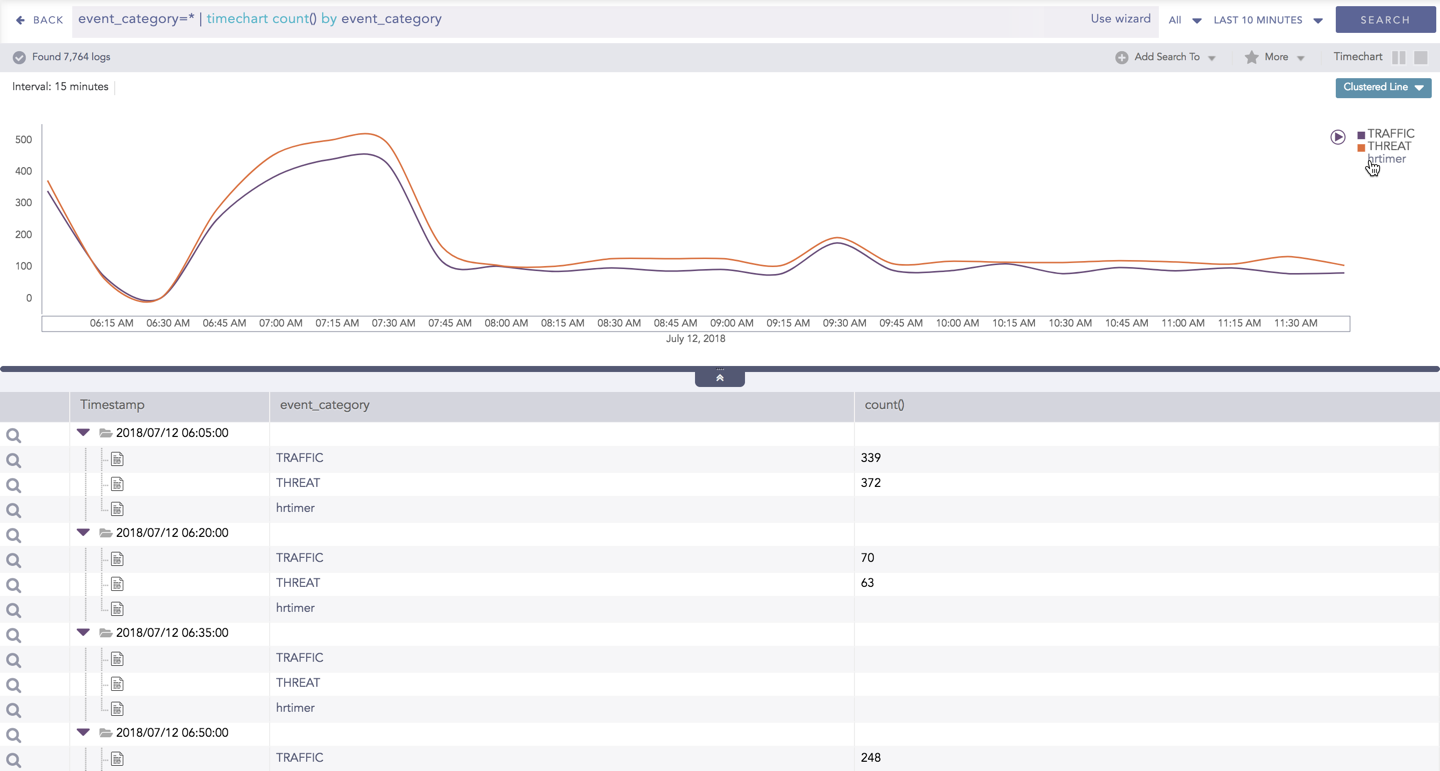
In the Timechart Single Aggregation with Grouping response type, when a chart is rendered, all the aggregation values of the selected grouping parameter(s) are displayed with a unique color for each value of the grouping parameter(s). However, you can choose to view the graphs concerning a specific value of grouping parameter(s).

To hide the value of a grouping parameter, click the name of the parameter on the legend at the extreme right side of the container.

../_images/LP_Search_SAWG_ActvLgnd.png

Interactive Legend in Timechart Single Aggregation with Grouping

When you click a name of a parameter on the legend, the section (line, bar) referring to the respective parameter disappears, and a new chart is rendered consisting all other values of the grouping parameter(s). Click the legend again to unhide the particular value.

../_images/LP_Search_SAWG_ActvLgnd_Rslt.png

Note

The scale on the y-axis is auto-adjusted as per the value of the remaining values of grouping parameter(s).

Drill-down

You can choose to view a detailed search for the response type regarding a specific value in two ways, i.e., from the line, or using a drag box.

Hover over a specific component/area of a chart to view a tool-tip. The tooltip displays all the information about the particular node.

../_images/LP_Search_TSAWG_Drilldown_Tooltip.png

Tooltip

Click the component to open a drill-down window. The window summarizes the related information of the selected section along with the option to drill down as per your preference.

../_images/LP_Search_TSAWG_Drilldown_Filter.png

Drill-down window

Click the corresponding Open in a new window icon to further drill-down the search result from any field. Additionally, click the View Logs to view the search result for the selected set of data.

../_images/LP_Search_TSAWG_Drilldown_Result.png

Drill-down results

In addition to that, you can also drill-down any chart of the response type using the drag box. Click and drag the mouse inside the graph, a yellow colored transparent drag box appears. You can drill-down the selected section of the chart by clicking the drill-down icon on the top-right corner of the box. You can resize or move the drag box as per your requirement.

../_images/LP_Search_TSAWG_Drilldown_DragBox.png

Drag-box

Interactive Animation

The charts belonging to the Timechart response type include an interactive Play button. It allows you to slide through values of the charts concerning time buckets known as Interval.

../_images/LP_Search_TSAWG_PlayBtn.png

Interactive Play

Click the Play on the right side of the container to start the animation. The graph is refreshed every four seconds, i.e., that graph shifts from one time-bucket to another time bucket every four seconds. Value of the time bucket is dependent upon the time-range specified in the Interval.

You can also click Pause, Stop, Previous, Next, Replay as required.

Timechart Multiple Aggregation without Grouping

The Timechart Multiple Aggregation without Grouping response type is used for aggregation of processed logs related to the given parameters. The logs are grouped into time buckets (as a time series data) over a specified time-range.

The general syntax for Timechart Multiple Aggregation without Grouping is:

| timechart aggregation_parameter1, aggregation_parameter2, .... aggregation_parametern

Example queries of Timechart Multiple Aggregation without Grouping type are:

| timechart count(), avg(datasize)

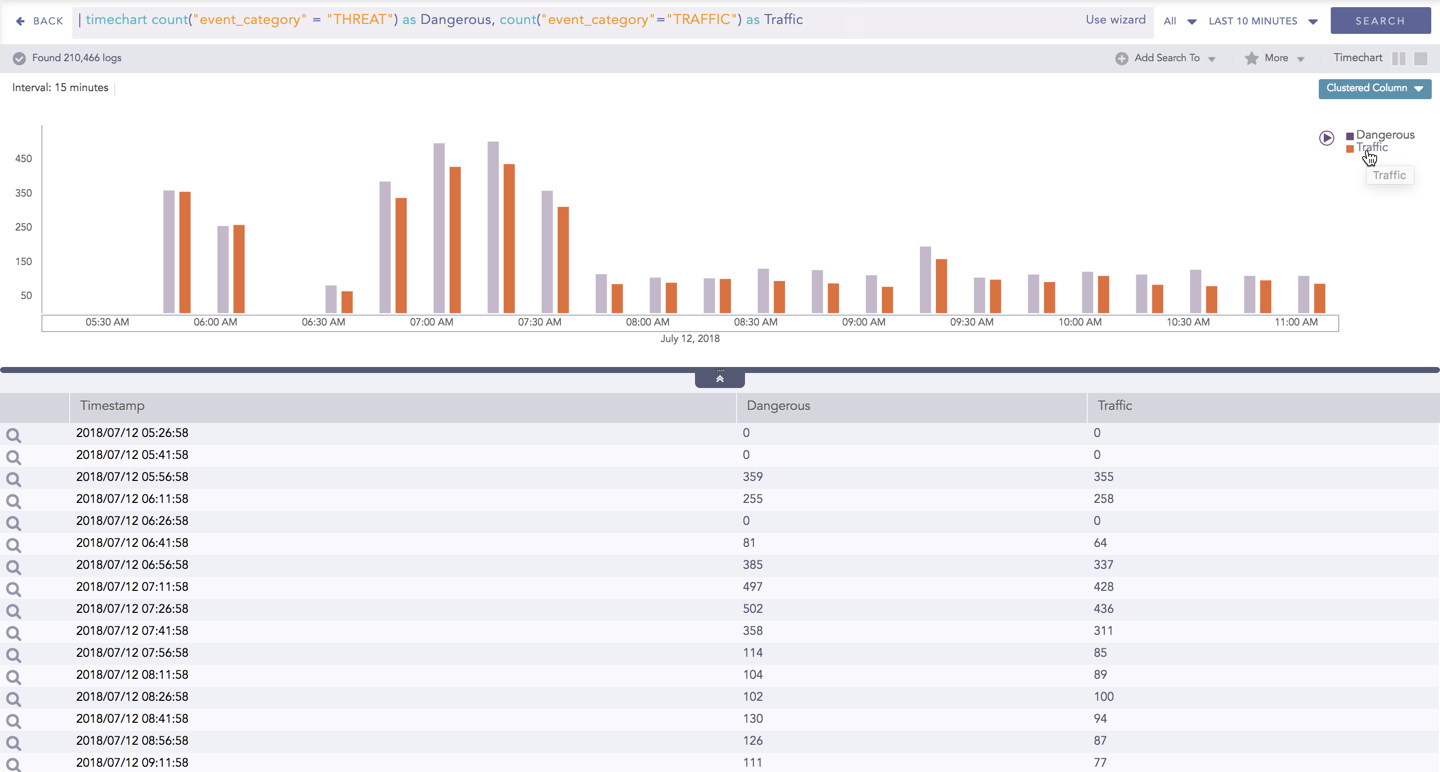
This query displays the count of total logs generated and the average datasize of collected logs for individual time bucket over a specified range of time. The result of this query can be represented in the form of :Clustered Column, Clustered Line, Radar, and Stacked Area charts.

Visualization Type

Sample Search Query

Clustered Column Chart

norm_id=WinDNSDHCP | timechart count(lease_address=drop) as Dropped, count(lease_address=start) as Started,count(lease_address=end) as ENDED

Clustered Line Chart

| timechart count("event_category" = "THREAT") as Dangerous, count("event_category" ="TRAFFIC") as Traffic

Radar chart

norm_id=WinDNSDHCP | timechart count(lease_address=drop) as Dropped, count(lease_address=start) as Started, count(lease_address=end) as ENDED

Stacked Area Chart

sent_datasize=* source_address=* | chart max(sent_datasize), max(received_datasize) by source_address order by max(sent_datasize), max(received_datasize) desc limit 10

General Operations of Timechart Multiple Aggregation without Grouping

This section contains the general operations that can be applied to all the charts belonging to the Timechart Multiple Aggregation without Grouping response type.

Note

Some charts might consist of operations that are relevant to the specific chart only. For such operations, refer to the section of the particular chart.

Interactive Legend

In the Timechart Multiple Aggregation without Grouping response type, when a chart is rendered, all the values of the selected aggregation parameter(s) are displayed with a unique color for each value of the aggregation parameter(s). However, you can view the graphs for specific aggregation parameter(s).

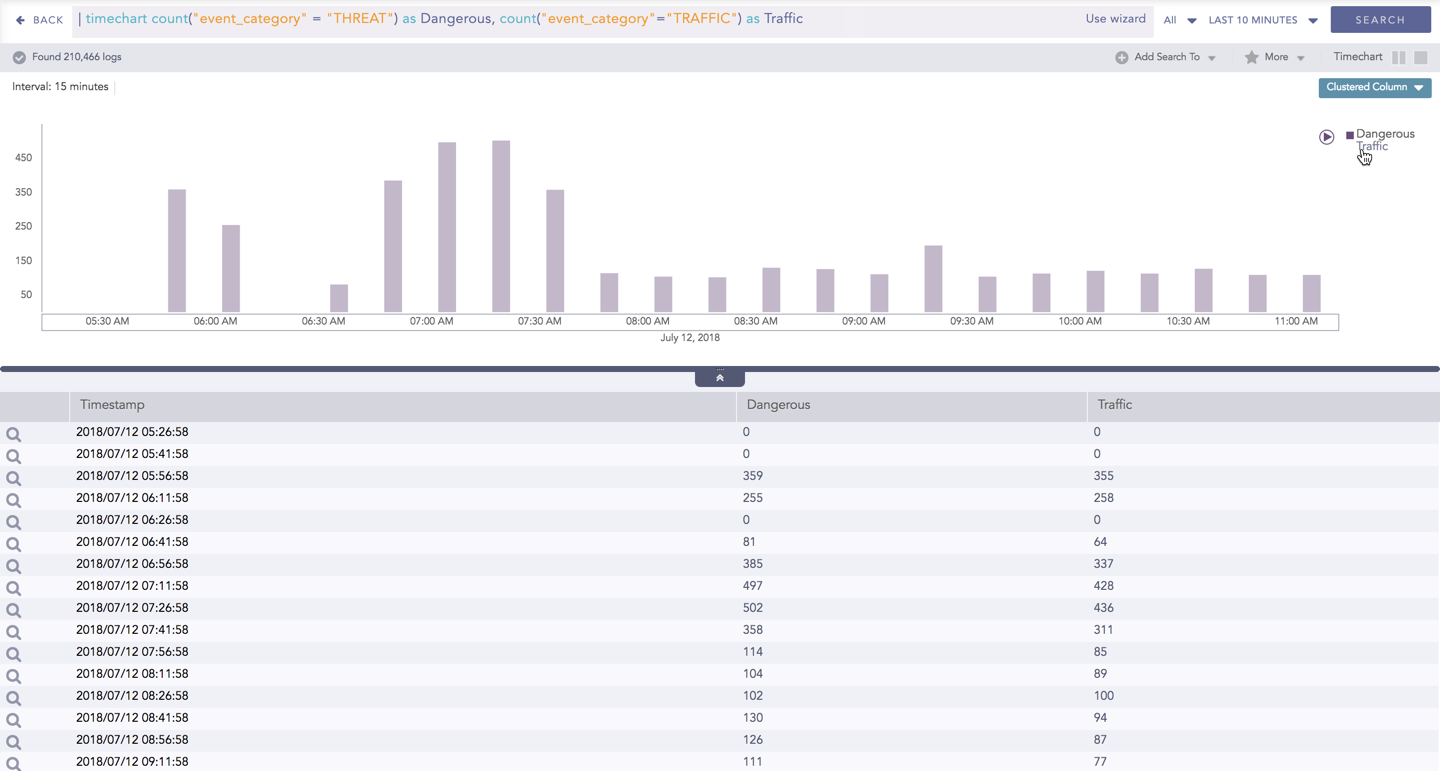
To hide an aggregation parameter, click the name of the parameter on the legend at the extreme right side of the container.

../_images/LP_Search_TMAWoG_Drilldown_ActvLgnd.png

Interactive Legend in Timechart Multiple Aggregation without Grouping

When you click a name of a parameter on the legend, the section (line, column, bar) referring to the respective parameter disappears, and a new chart is rendered consisting all other aggregation parameters (s). Click the legend again to unhide the value.

../_images/LP_Search_TMAWoG_Drilldown_ActvLgnd_rslt.png

Note

The scale on the y-axis is auto-adjusted as per the value of the remaining aggregation parameter(s).

Drill-down

You can choose to view a detailed search for the response type regarding a specific value in two ways, i.e., from the line, or using a drag box.

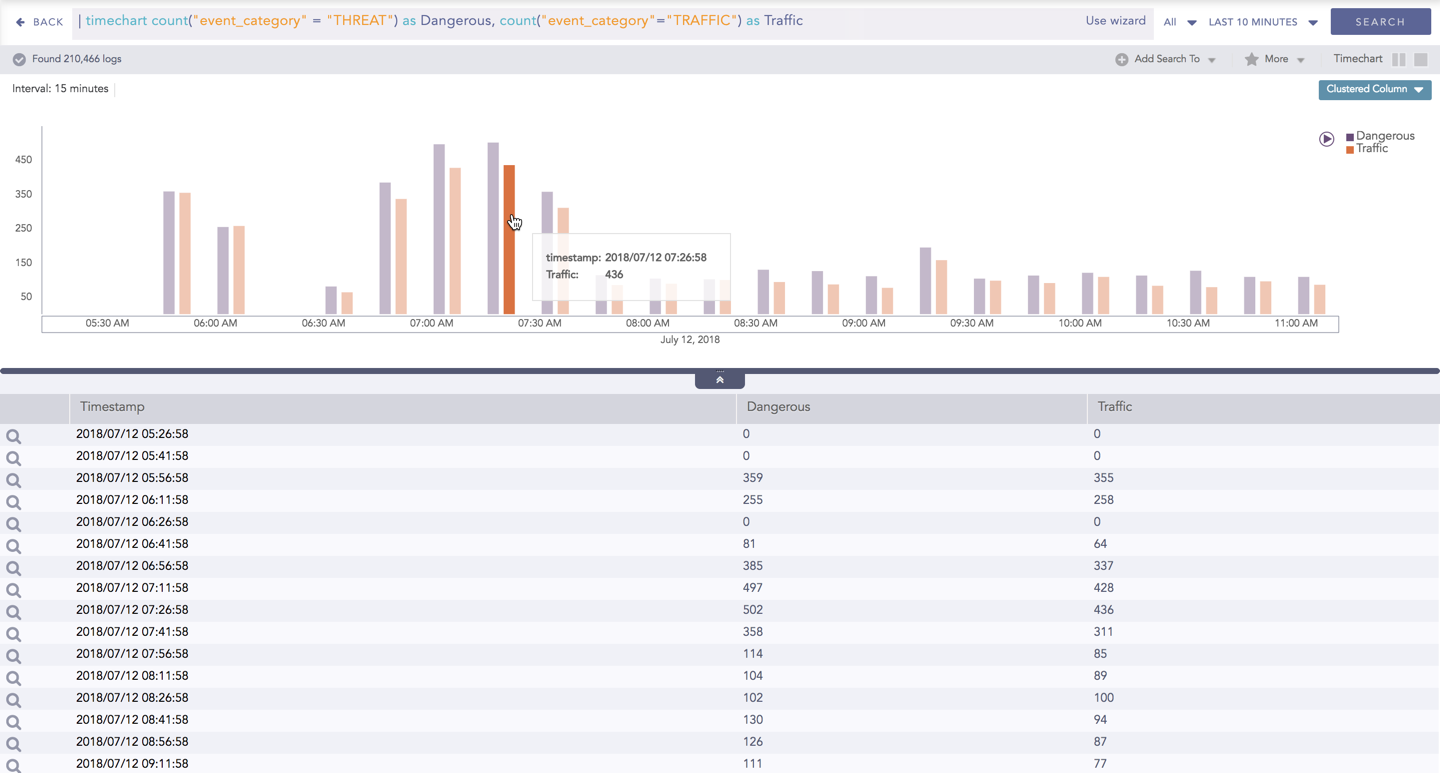
Hover over a specific component/area of a chart to view a tool-tip. The tooltip displays all the information about the particular node.

../_images/LP_Search_TMAWoG_Drilldown_Tooltip.png

Tooltip

Click the component to open a drill-down window. The window summarizes the related information of the selected section along with the option to drill down as per your preference.

../_images/LP_Search_TMAWoG_Drilldown_Filter.png

Drill-down

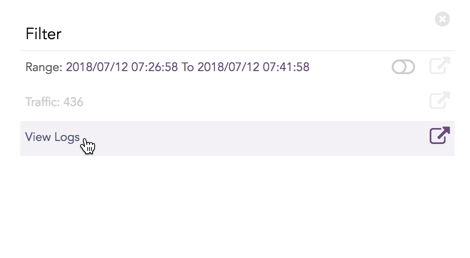
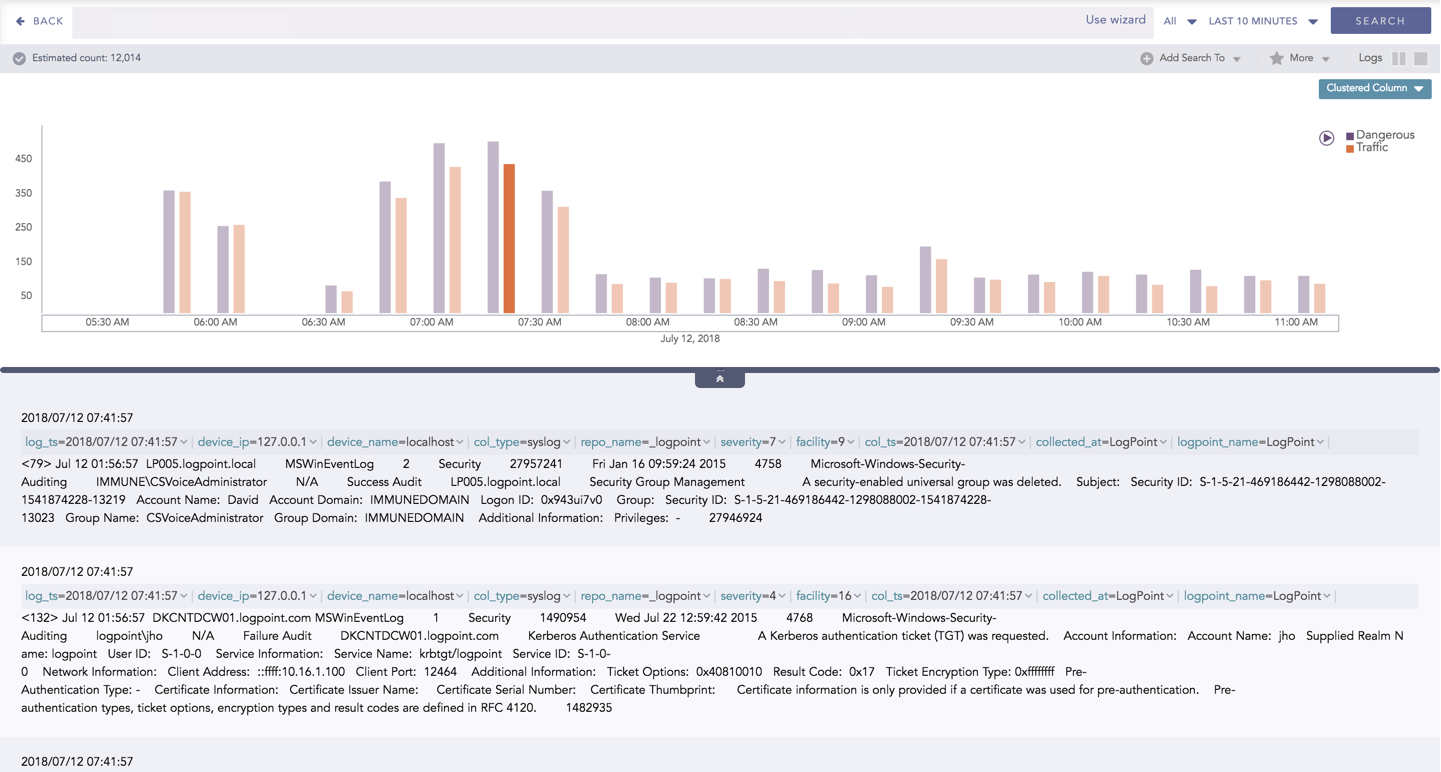
Click the corresponding Open in a new window icon to further drill-down the search result from any field. Additionally, click the View Logs to view the search result for the selected set of data.

../_images/LP_Search_TMAWoG_Drilldown_Result.png

Drill-down results

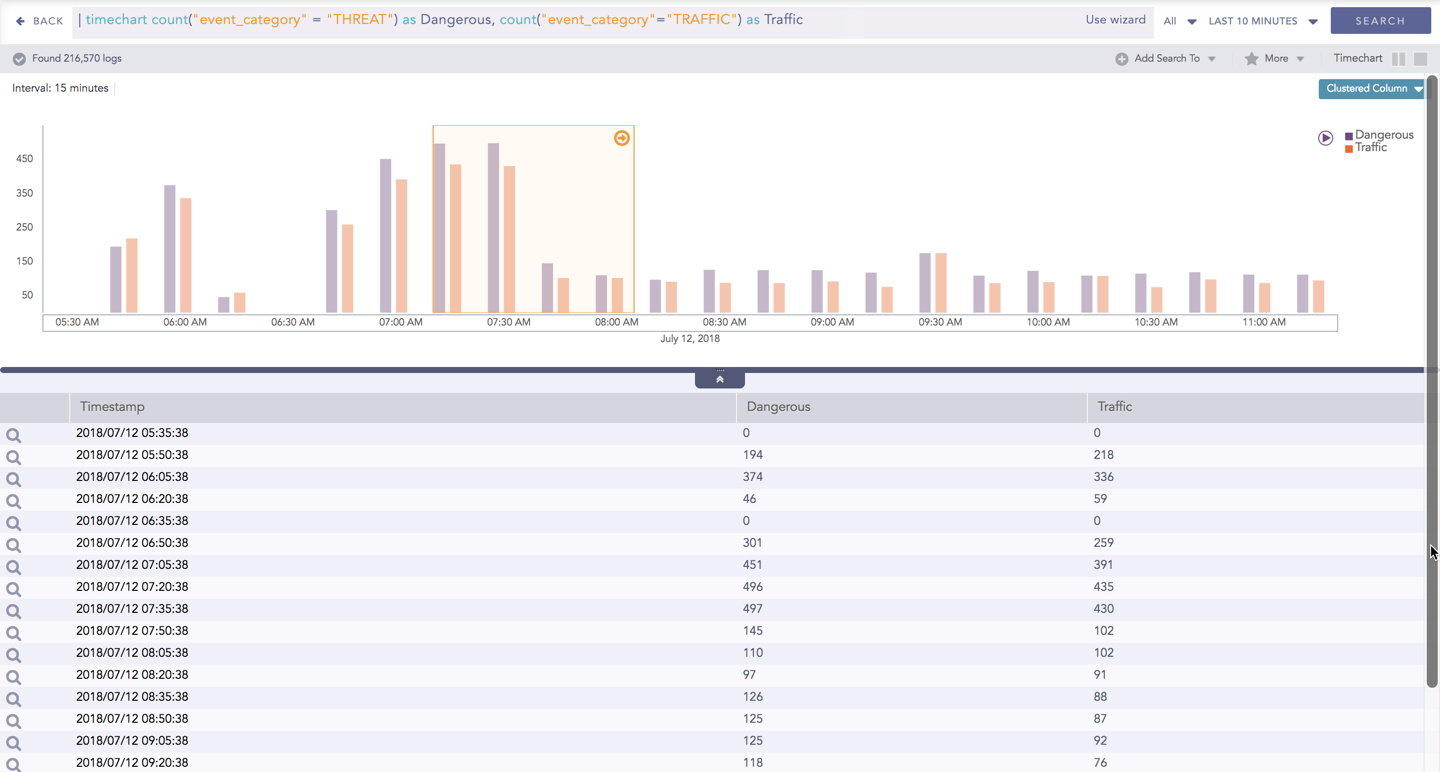
In addition to that, you can also drill-down any chart of the response type using the drag box. Click and drag the mouse inside the graph, a yellow colored transparent drag box appears. You can drill-down the selected section of the chart by clicking the drill-down icon at the top-right corner of the box. You can resize or move the drag box as per your requirement.

../_images/LP_Search_TMAWoG_Drilldown_DragBox.png

Interactive Animation

The charts belonging to the Timechart response type include an interactive play button. It allows you to slide through values of the charts concerning time buckets known as Interval.

../_images/LP_Search_TMAWoG_PlayBtn.png

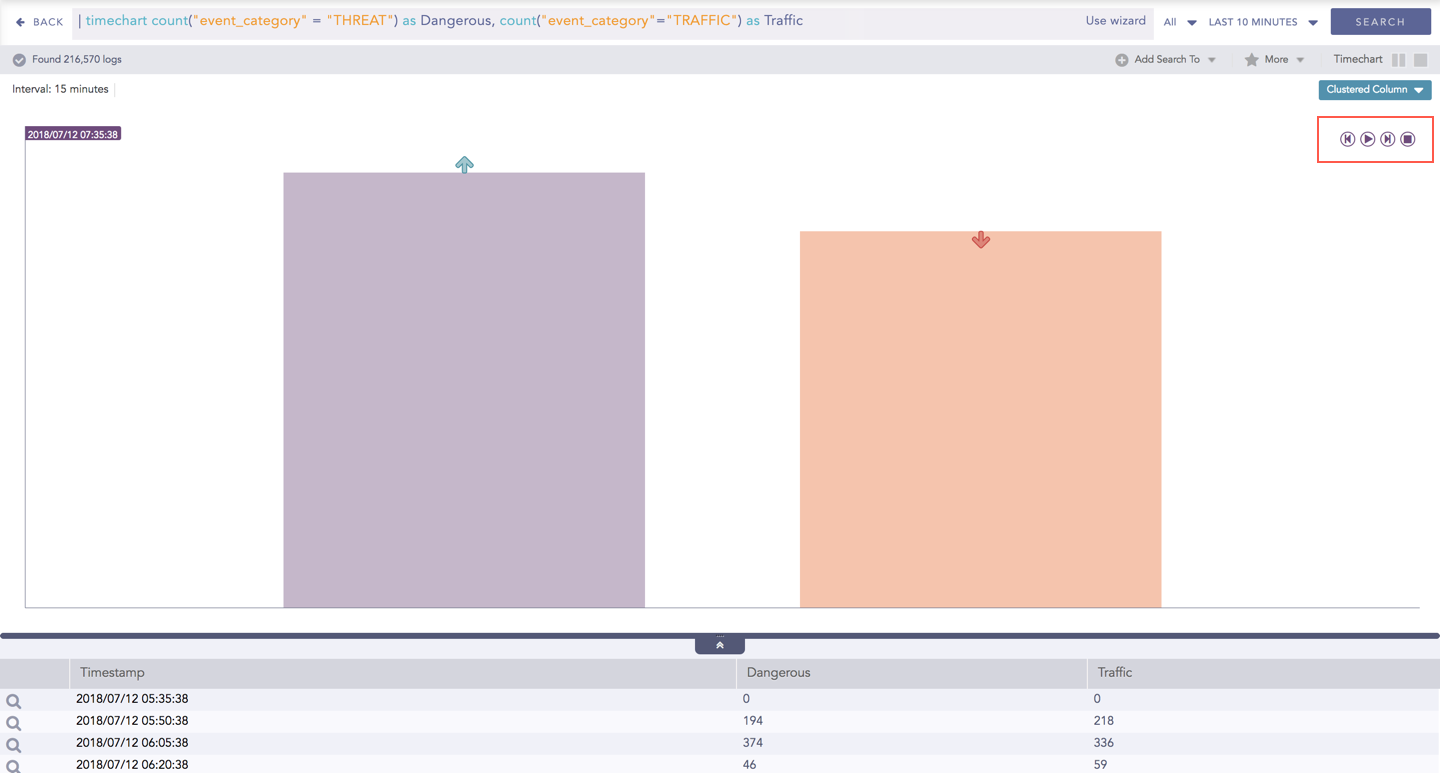
Interactive Play

Click Play on the right side of the container to start the animation. The graph is refreshed every four seconds, i.e., that graph shifts from one time-bucket to another time bucket every four seconds. Value of the time bucket is dependent upon the time-range specified in the Interval.

You can also click Pause, Stop, Previous, Next, Replay as required.
Timechart Multiple Aggregation with Grouping

The Timechart Multiple Aggregation with Grouping response type is used for aggregation of an individual grouping parameter for given multiple aggregation parameters grouped into time buckets over a specified time range.

The general syntax for Timechart Multiple Aggregation without Grouping is:

| timechart aggregation_parameter1, aggregation_parameter2, ...., aggregation_parametern by grouping_
parameter1, grouping_parameter2, ...., grouping_parametern

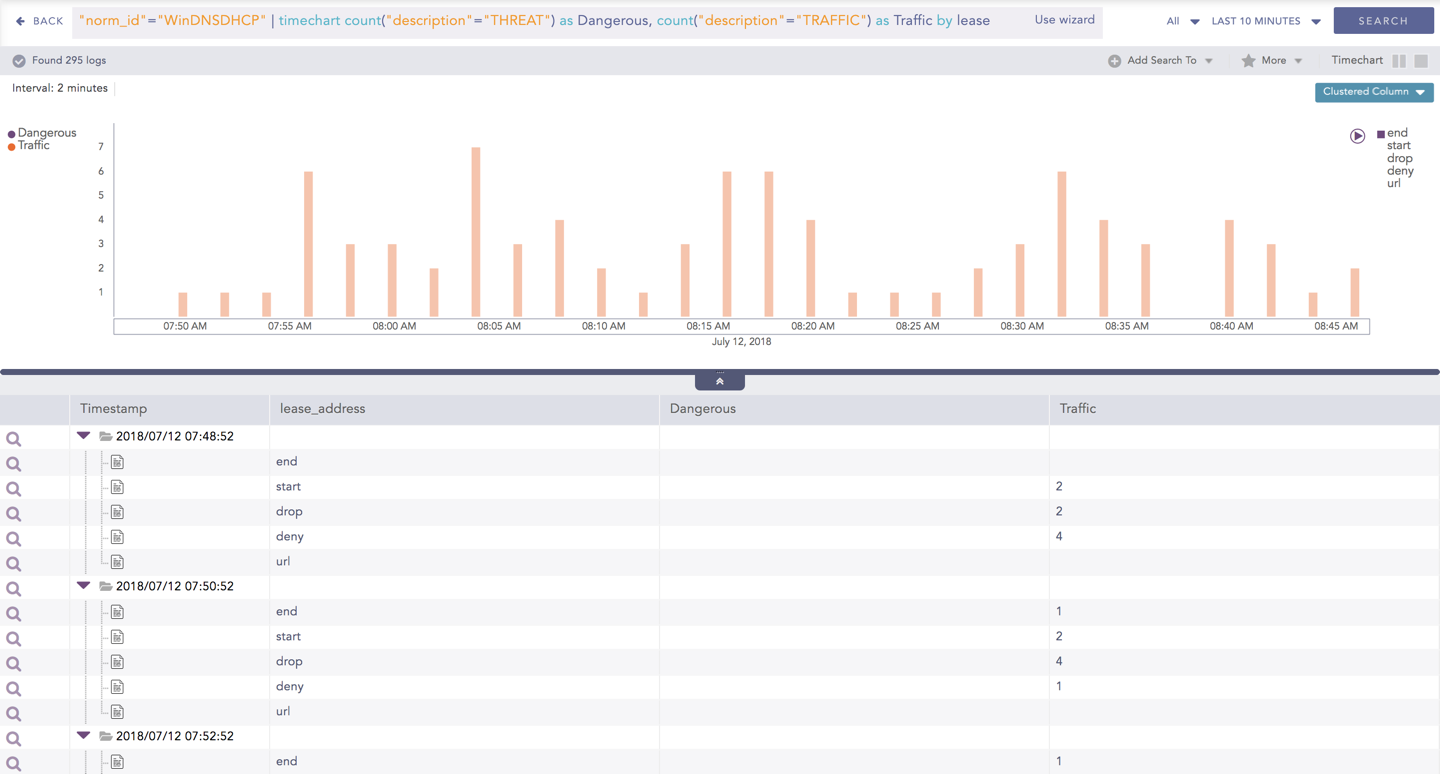
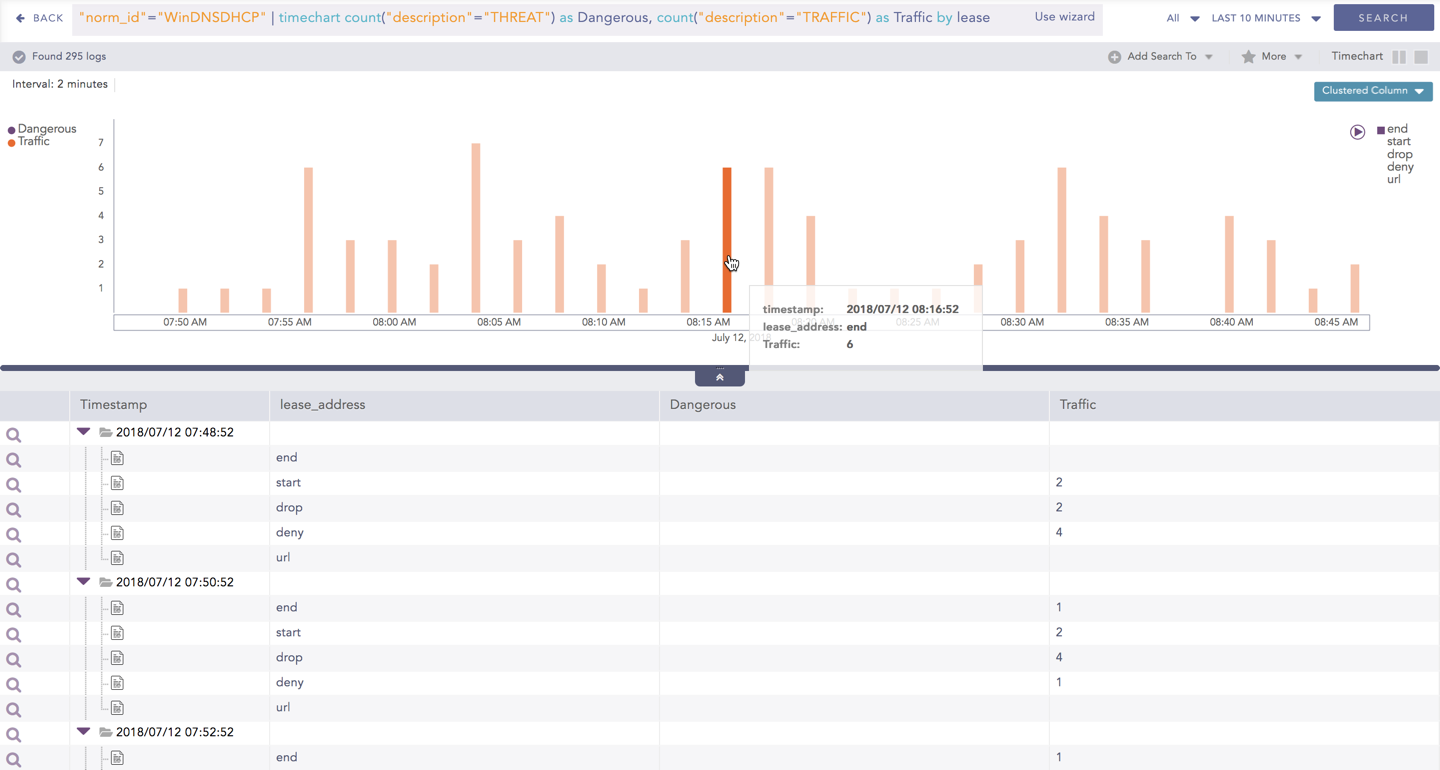
An example of a search query for the response is:

"norm_id"="WinDNSDHCP"  | timechart count("description" = "THREAT") as Dangerous,  count("description" =
"TRAFFIC") as Traffic by lease_address
../_images/LP_Search_TMAWG_Chart1.png

Timechart Multiple Aggregation with Grouping

The result of this query can be represented in the form of : Clustered Column and Bubble charts.

Visualization Type

Sample Search Query

Clustered Column Chart

norm_id=WinDNSDHCP | timechart count(lease_address=drop) as Dropped, count(lease_address=start) as Started,count(lease_address=end) as ENDED

Bubble Chart

| timechart count(), avg(sig_id), max(datasize), distinct_count(sig_id) by status_code

General operations for Timechart Multiple Aggregation with Grouping

Drill-down

Like in the search results of other responses, when you hover on any section (here, any count() or avg(doable_mps)), the selected section is highlighted, and the information for the selected section is as shown in the tooltip.

../_images/LP_Search_TMAWG_Drilldown_Tool_Tip.png

Tooltip

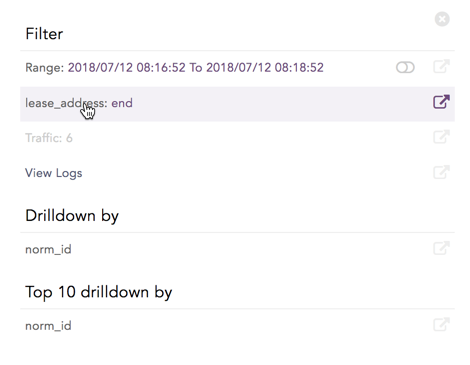
Click the component to open a drill-down window. The window summarizes the related information of the selected section along with the option to drill down as per your preference.

../_images/LP_Search_TMAWG_Drilldown_Filter.png

Drill-down window

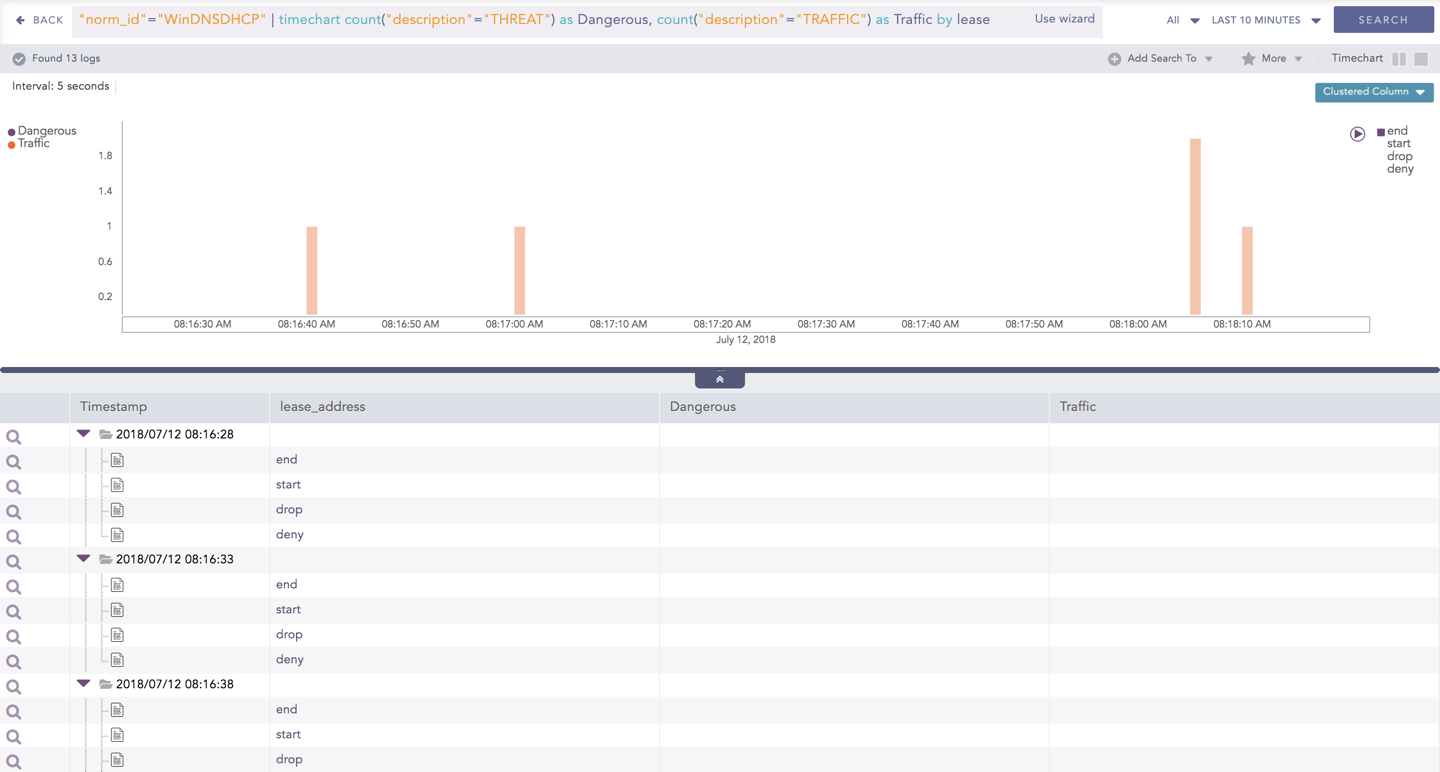
Click the corresponding Open in a new window icon to further drill-down the search result from any field. Additionally, click the View Logs to view the search result for the selected set of data.

../_images/LP_Search_TMAWG_Drilldown_Results.png

Drill-down results

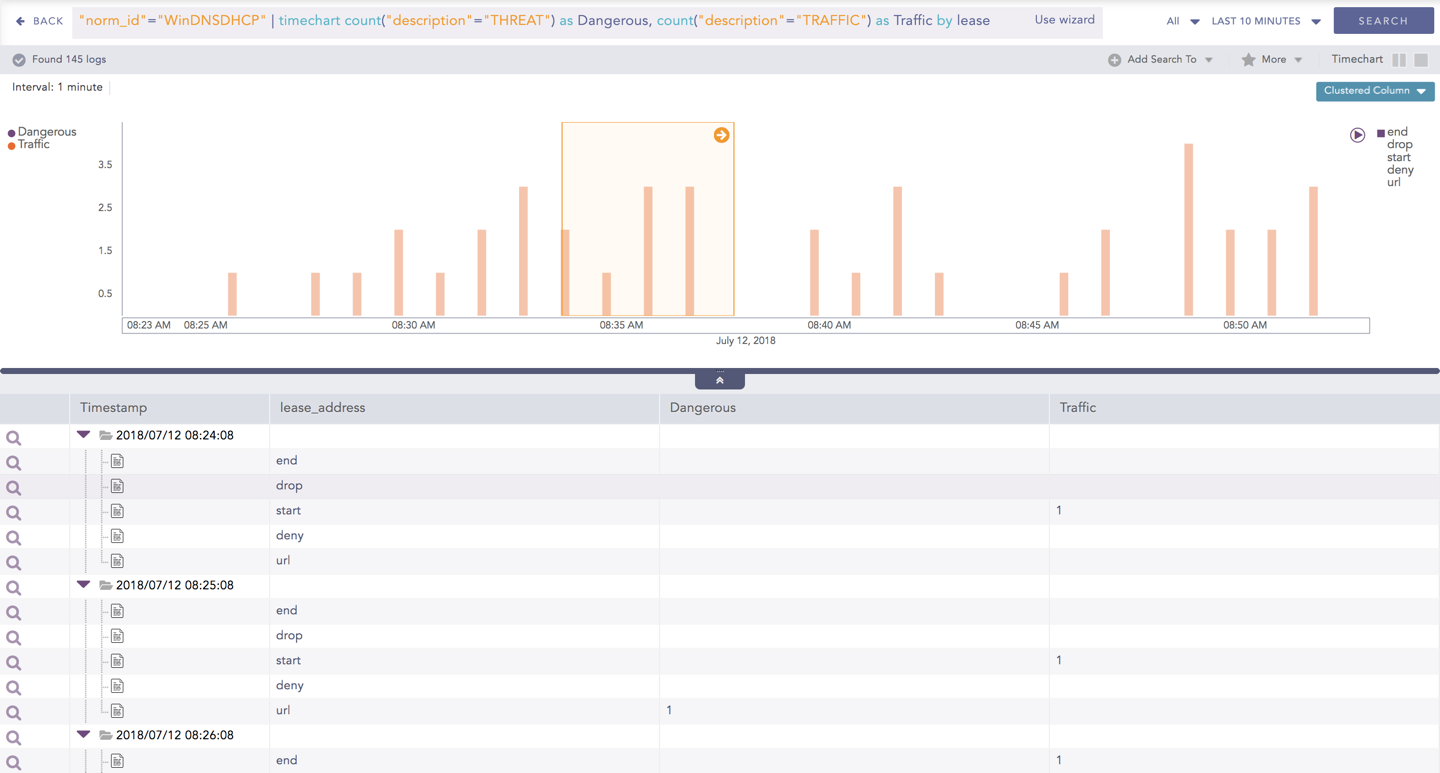
In addition to that, you can also drill-down any chart of the response type using the drag box. Click and drag the mouse inside the graph, a yellow colored transparent drag box appears. You can drill-down the selected section of the chart by clicking the drill-down icon on the top-right corner of the box. You can resize or move the drag box as per your requirement.

../_images/LP_Search_TMAWG_Drilldown_Drag_Box.png

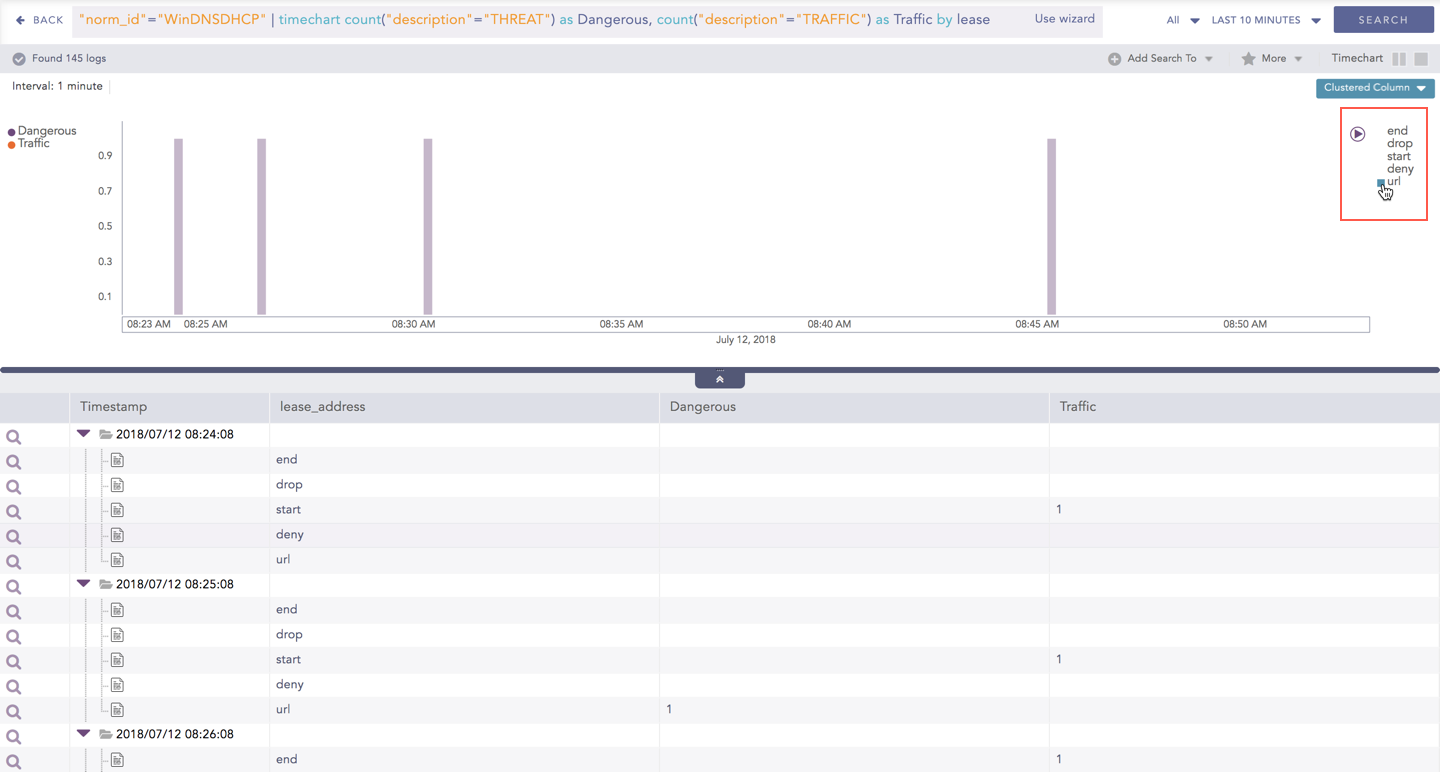
Interactive Legend

For the responses of Timechart Multiple Aggregation with Grouping, the legend is displayed on either side of the search graph. The aggregation parameter(s) is shown on the left-hand side whereas the grouping parameter is shown on the right-hand side.

An important thing to note here is that at an instant, the result of only one of the grouping parameters is displayed. Moreover, only the legends of the grouping parameter (on the right) are interactive. The legends of aggregation parameters (on the left) are not interactive.

../_images/LP_Search_TMAWG_ActveLgnd_Rslt.png

Timechart Multiple Aggregation with Grouping

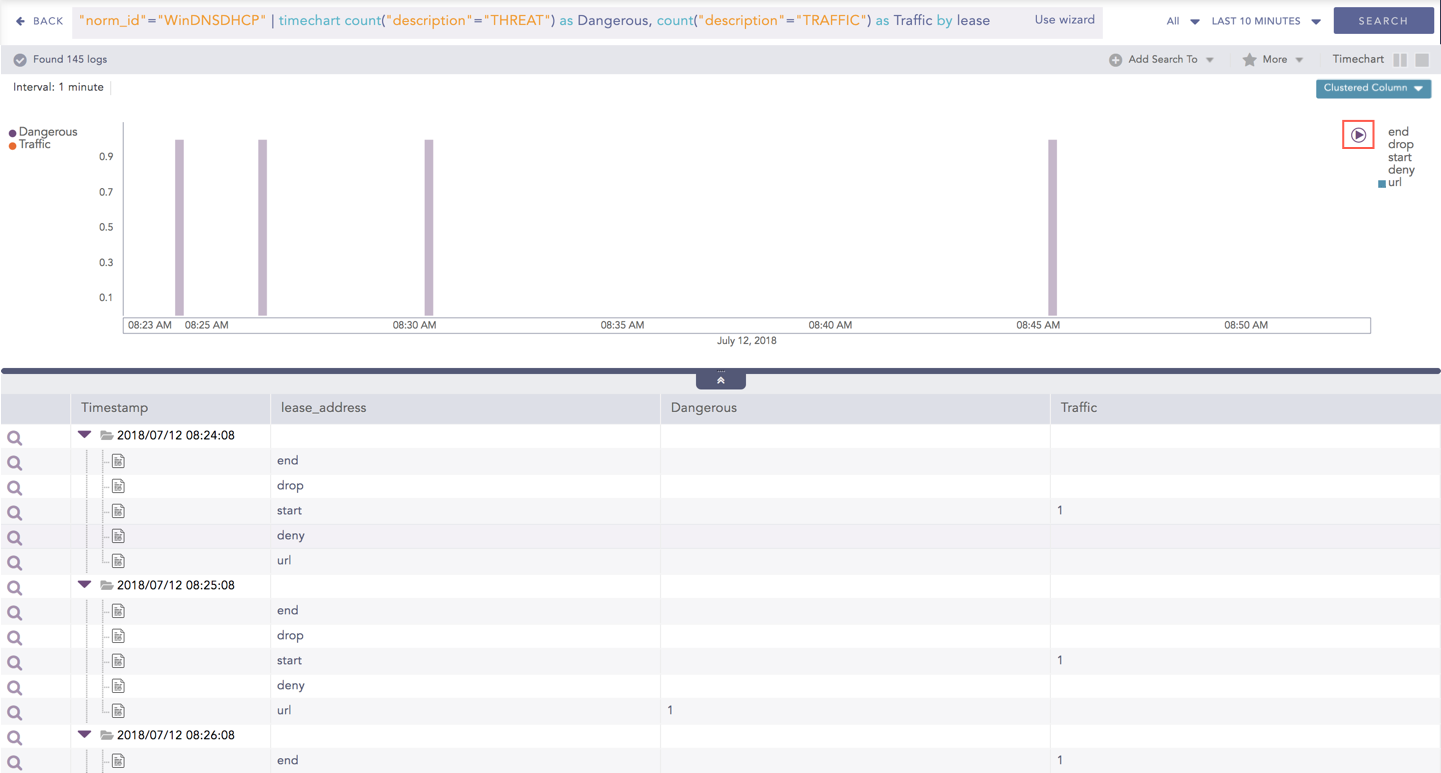
Interactive Animation

The charts belonging to the Timechart response type include an interactive Play button. It allows you to slide through values of the charts concerning time buckets known as Interval.

../_images/LP_Search_TMAWG_ActveLgnd_Rslt_Play.png

Interactive Play

Click the Play on the right side of the container to start the animation. The graph is refreshed every four seconds, i.e., that graph shifts from one time-bucket to another time bucket every four seconds. Value of the time bucket is dependent upon the time-range specified in the Interval.

You can also click Pause, Stop, Previous, Next, Replay as required.

Helpful?

We are glad this guide helped.

Please don't include any personal information in your comment

Contact Support